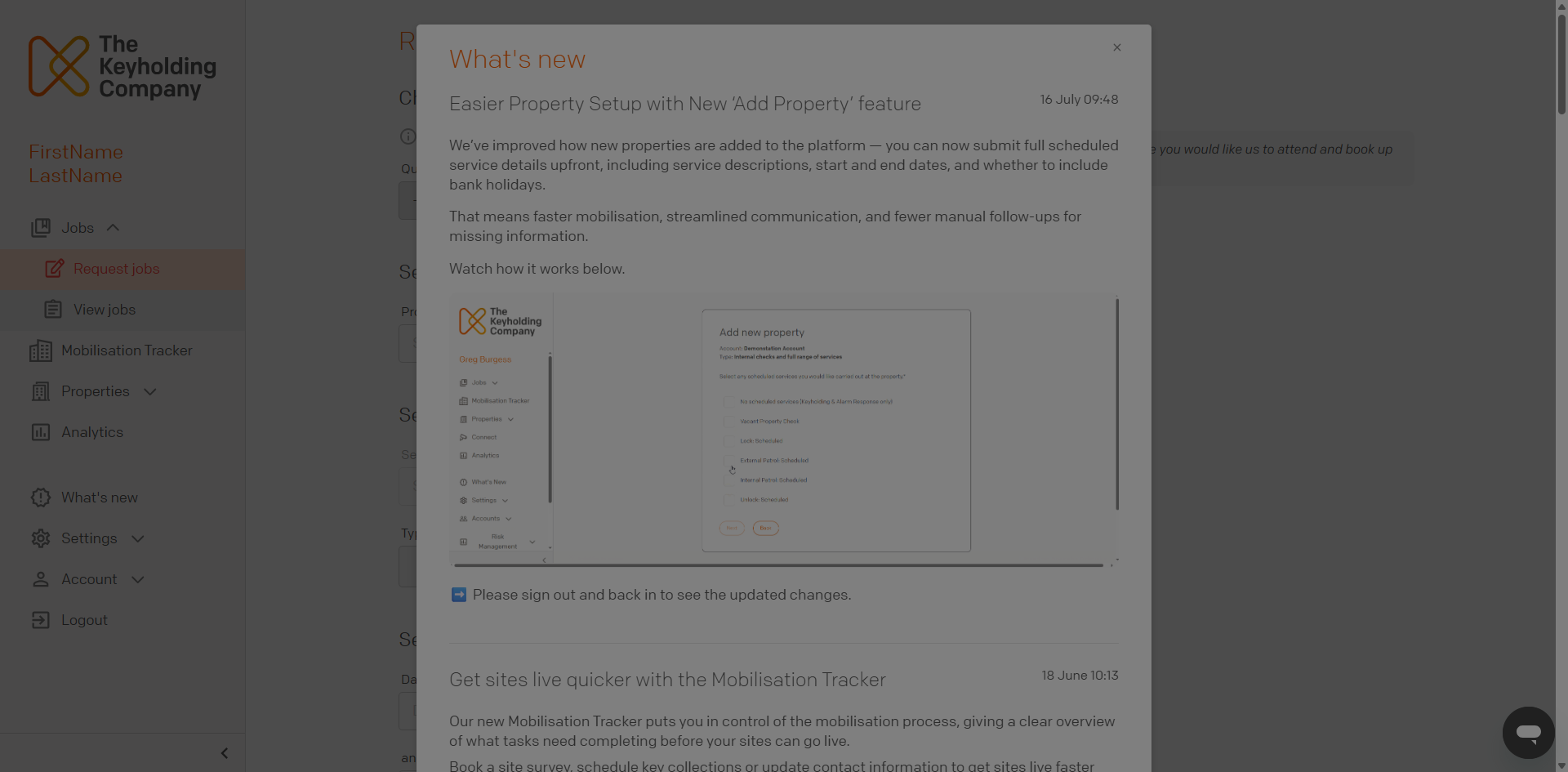
To access the Keyholding Company platform and, ultimately, the Command Product, you will need to be configured with a platform user. A member of the keyholding company's staff will do this for you. You should then receive an email invitation to complete your account setup.
This section explains how to set up a platform user account.
01
Email invite
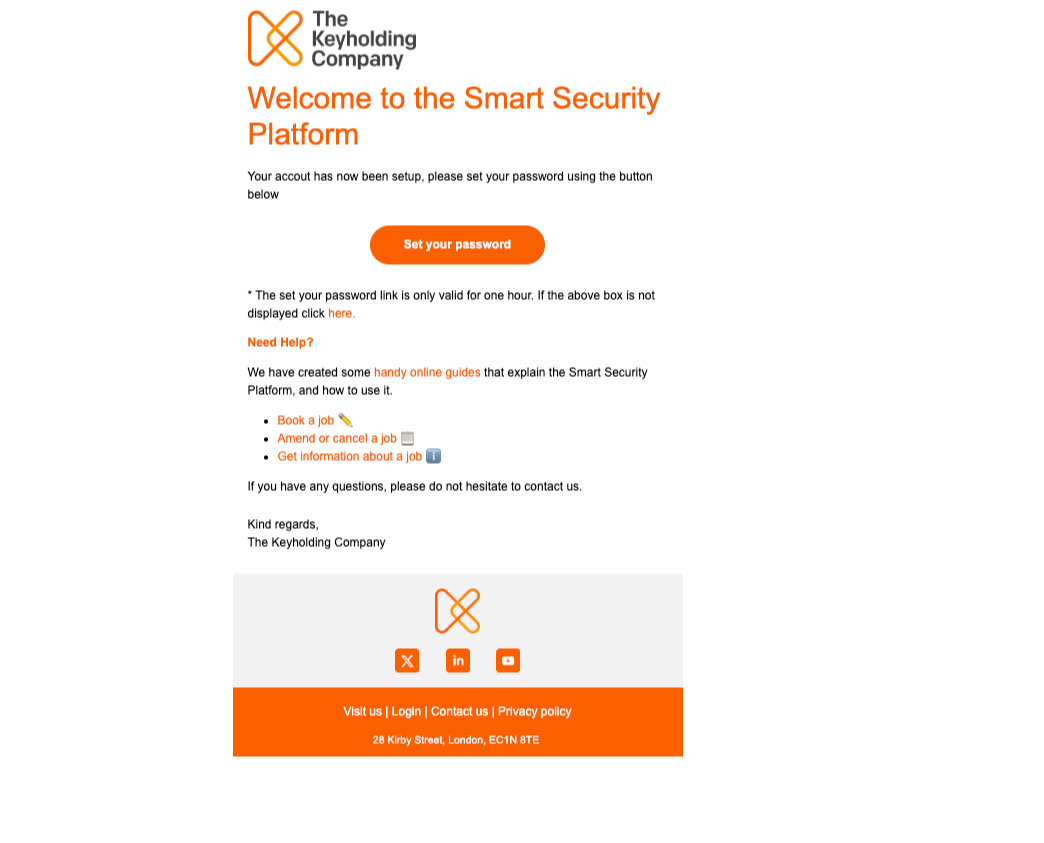
You should have received an email invitation with a link to reset your password.
02
Click the Reset Password Link
Click the Reset your password link sent to your email account to begin updating your account credentials.
03
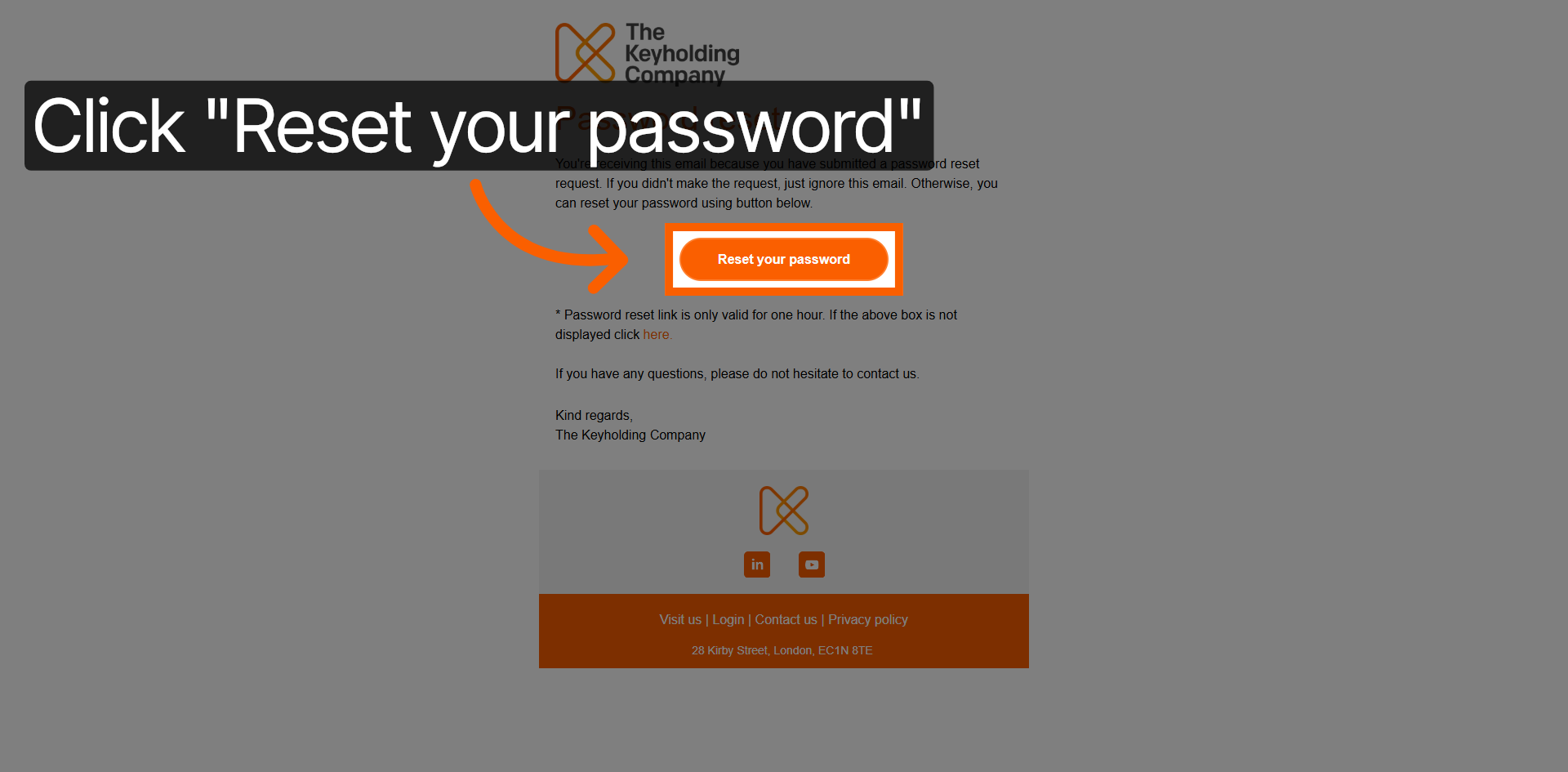
Enter and Confirm Your New Password
Enter your new password and confirm as outlined on the page.
04
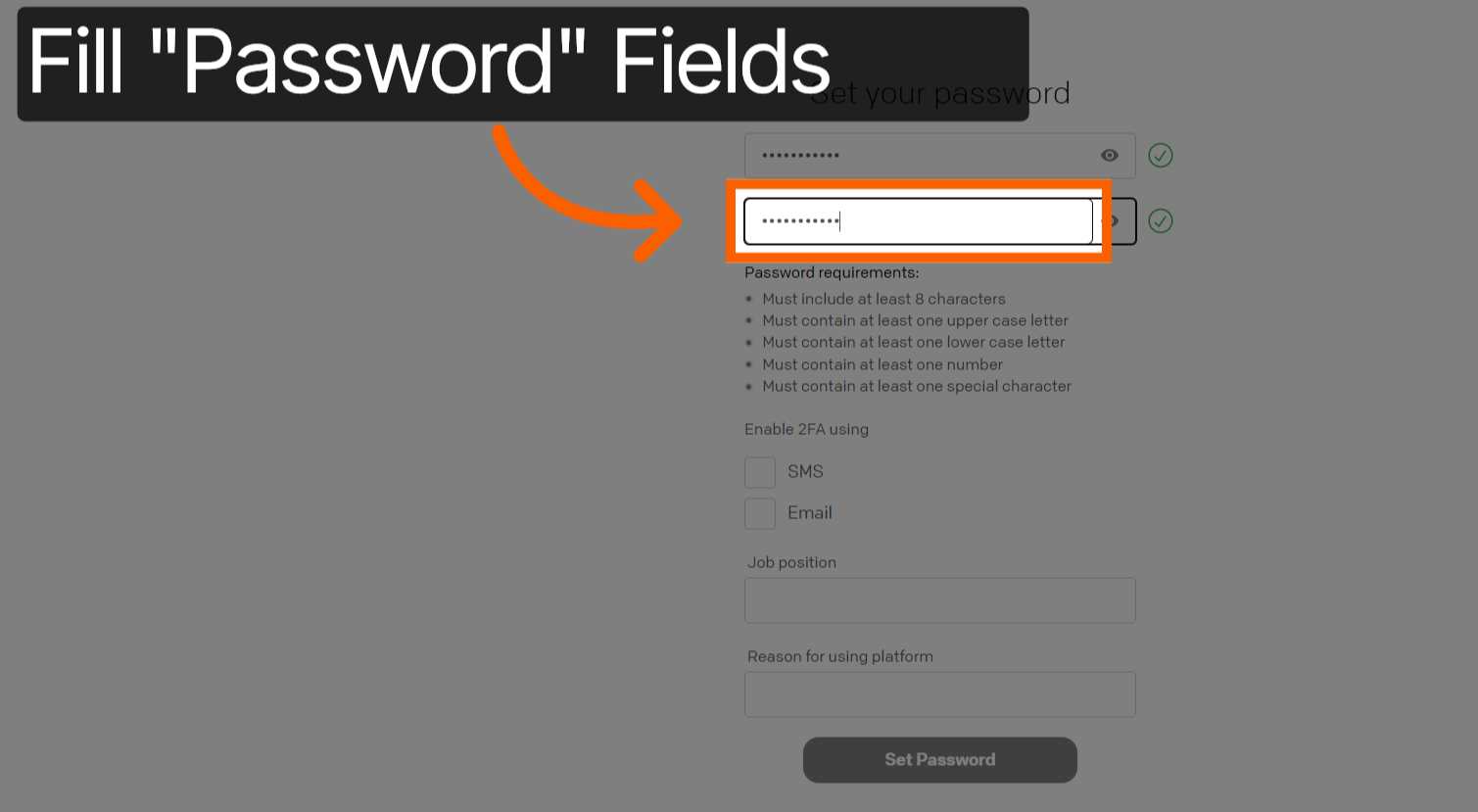
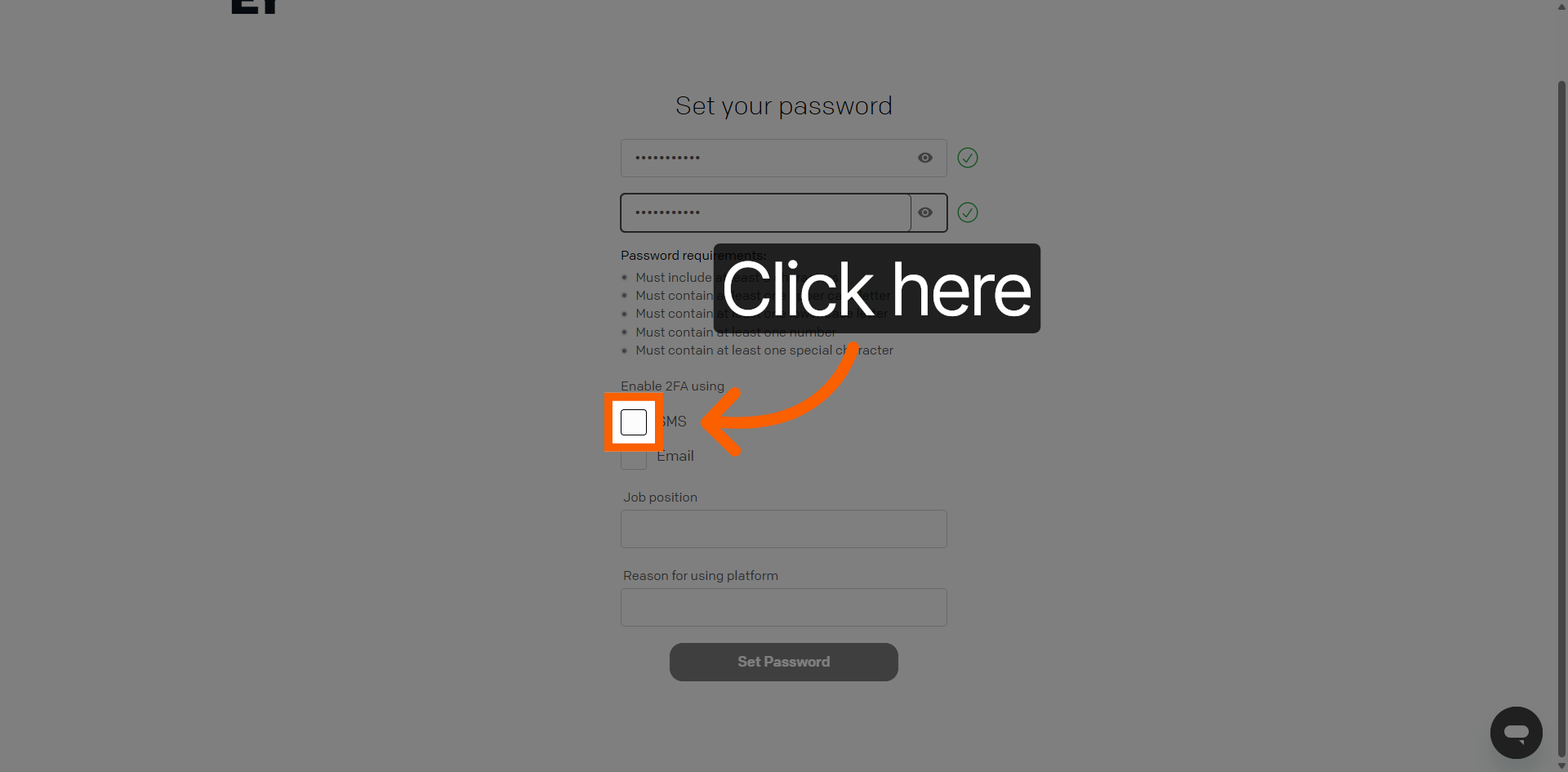
Confirm 2-Factor Authentication Option
Select an option for 2-factor authentication, either via email or SMS text message.
05
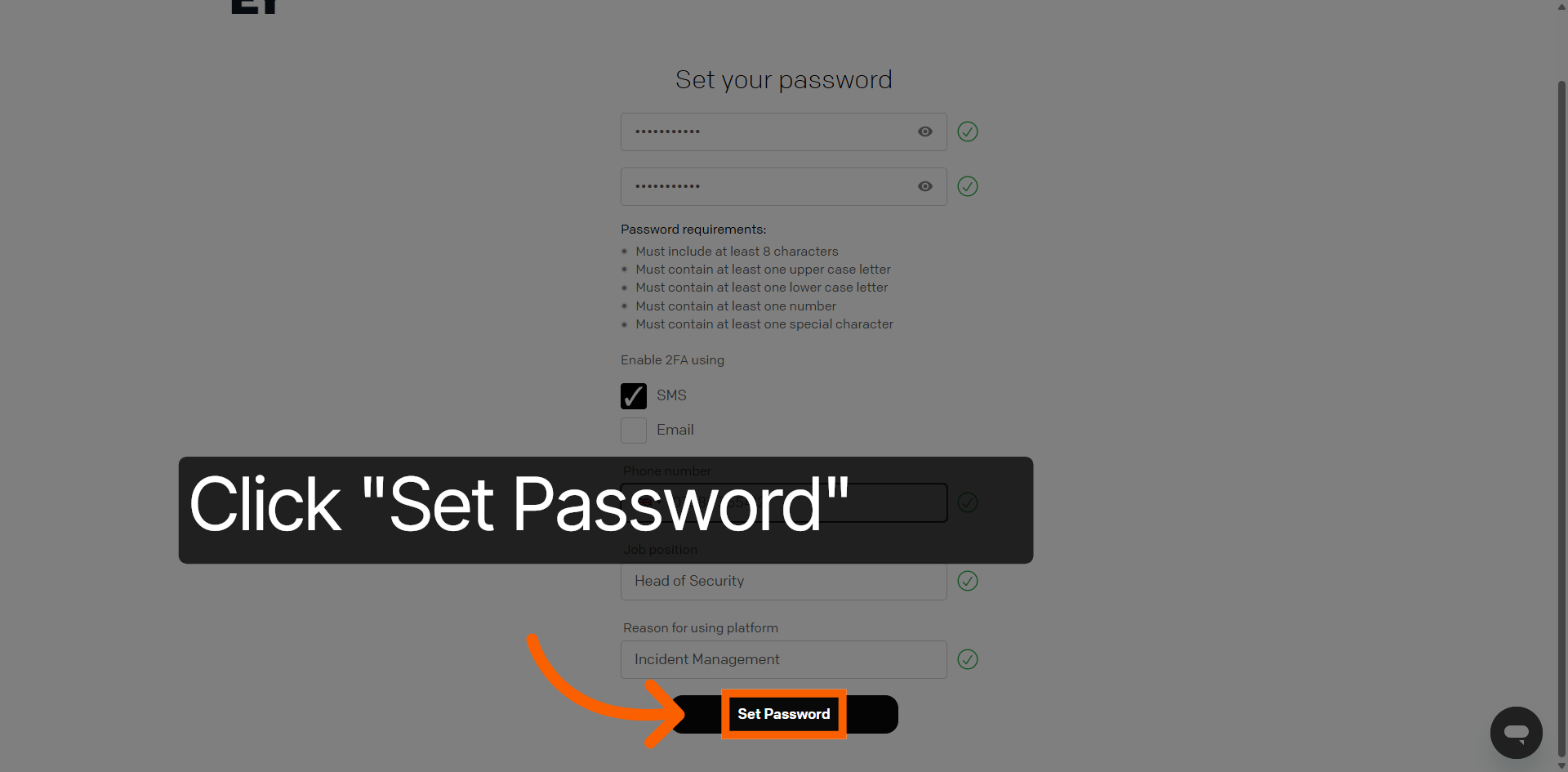
Click the Set Password Button
Complete your user details and click Set Password.
06
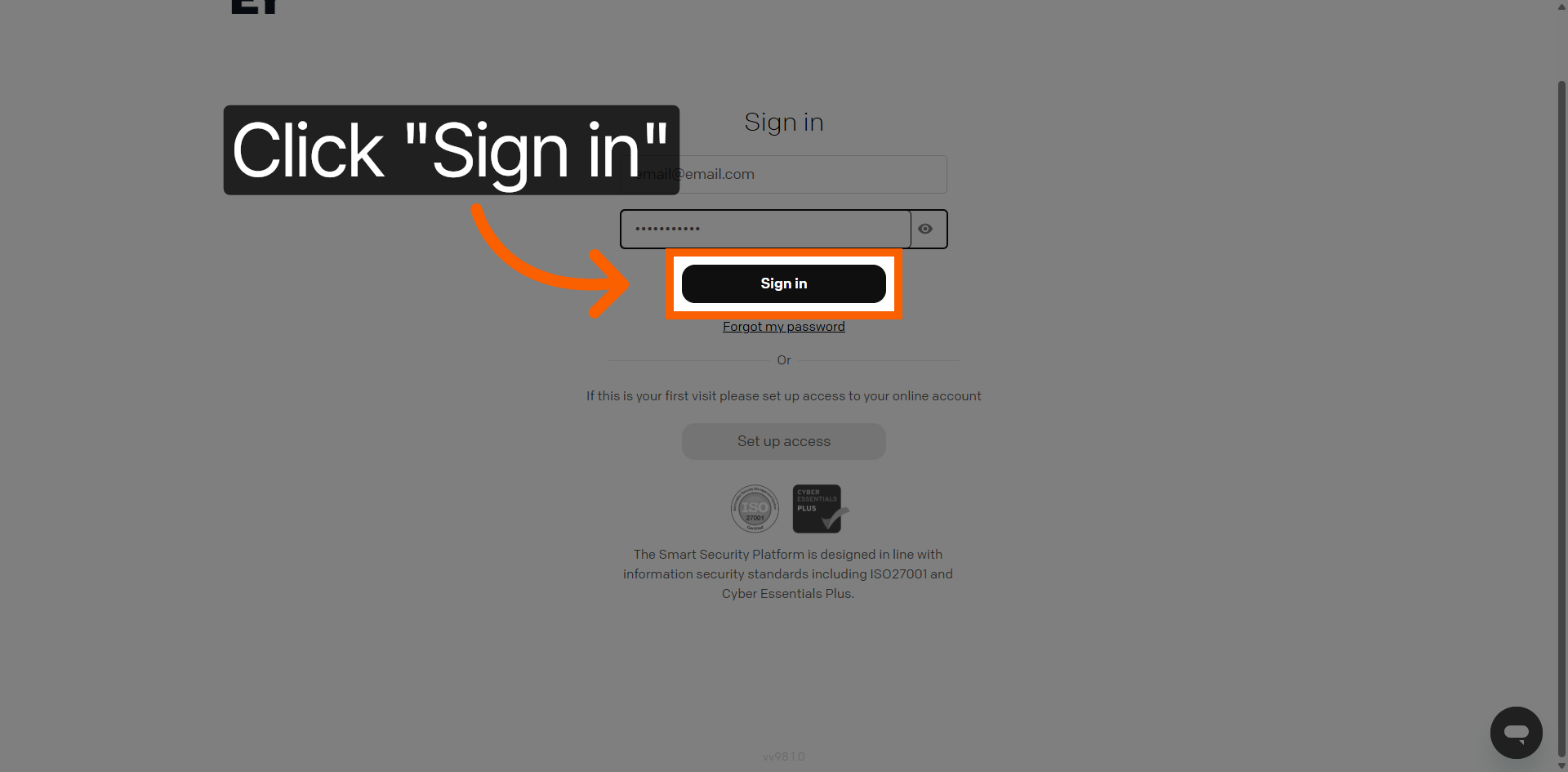
Click the Sign In Button
Enter your newly configured account credentials and click Sign in.
07
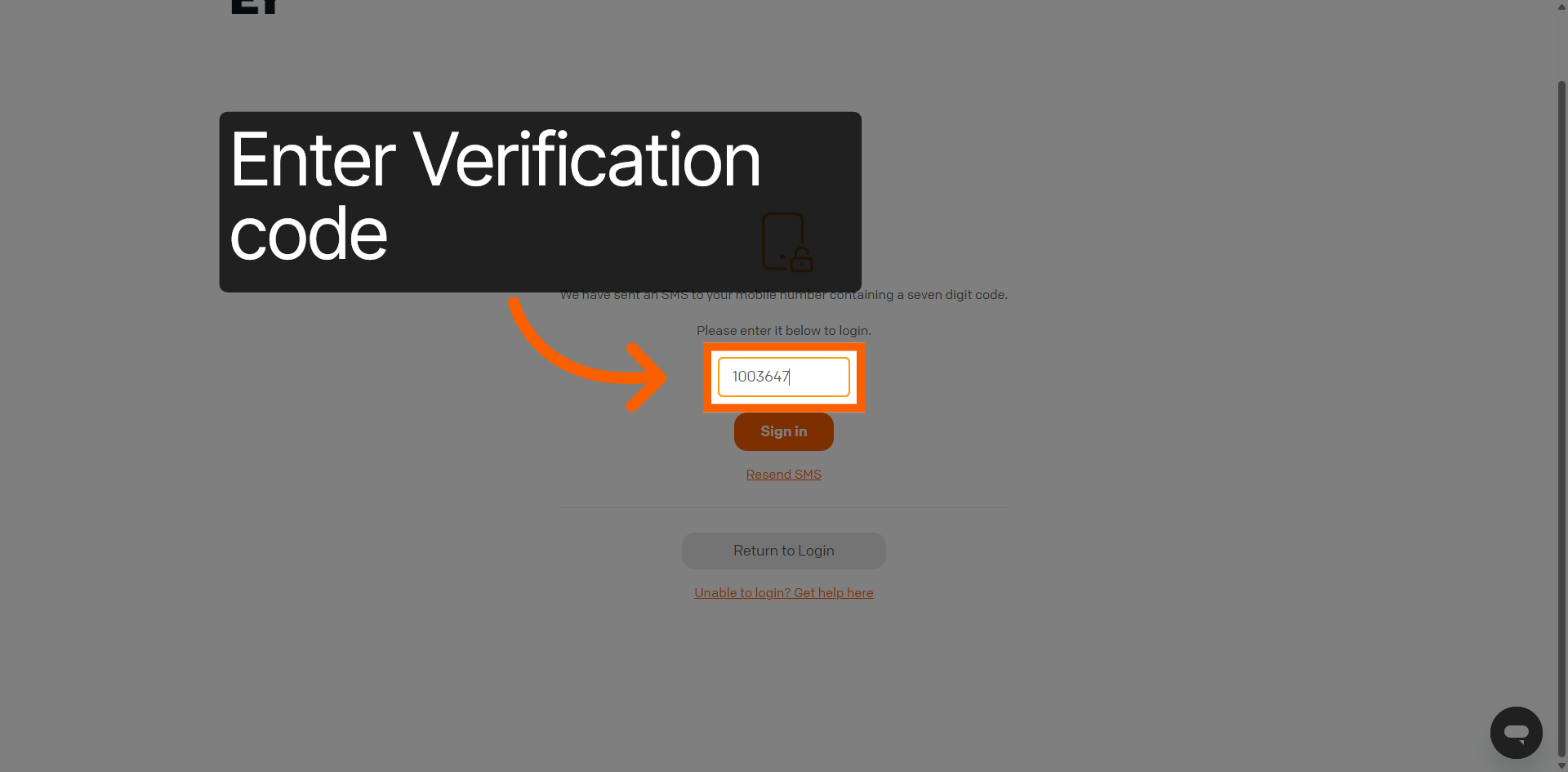
Enter User ID
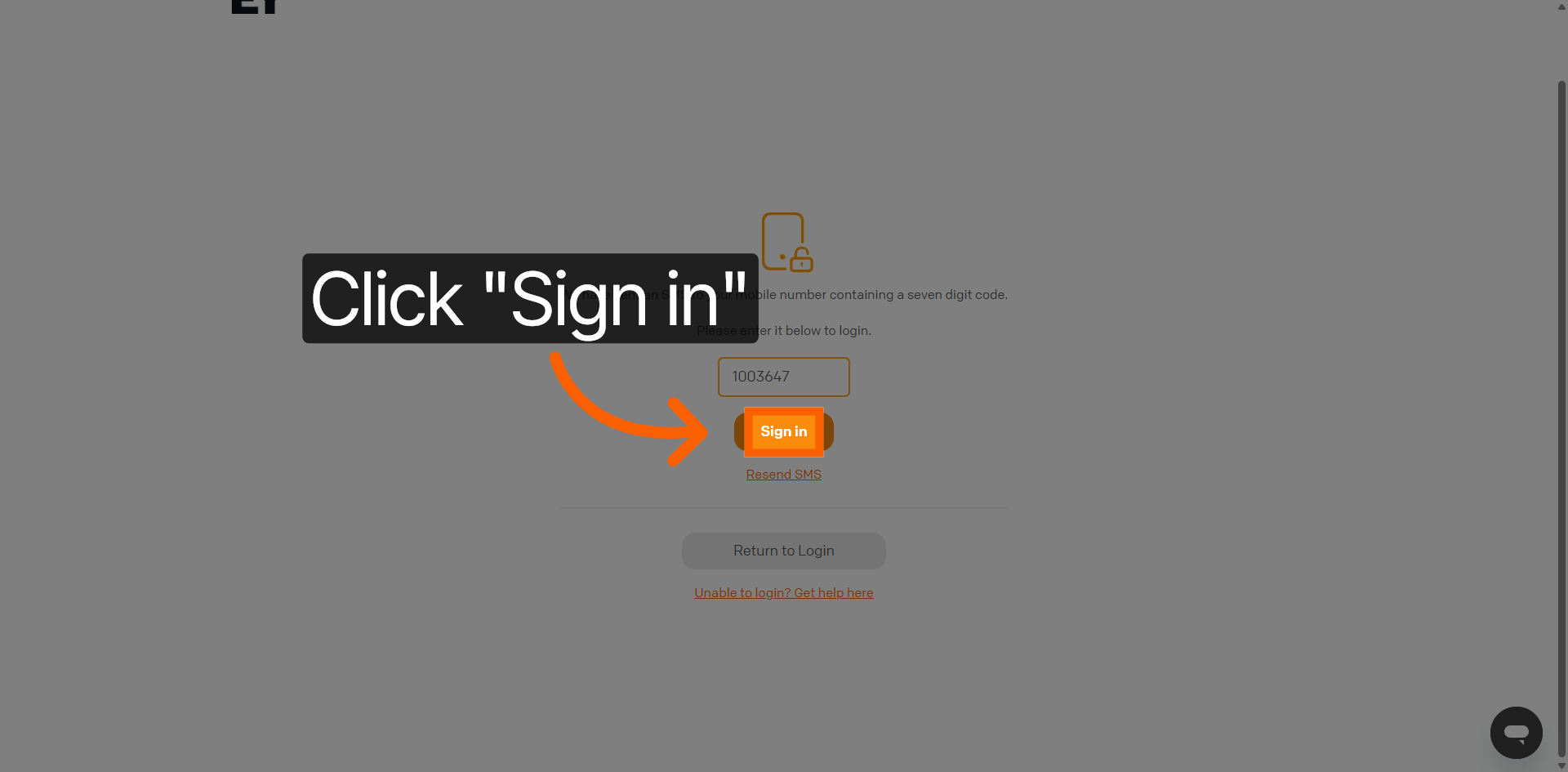
You will be prompted to enter a verification code. This should have been received via your selected 2-factor authentication method. If you have not received this code, click on the resend button.
08
Click the Sign In Button Again
Click the Sign in button to complete the login process.
09
Successful Login
Congratulations, you have successfully logged into the keyholding Company platform.