Within Command, Standard Operating Procedures (SOPs) can be created and managed for each incident type. These SOPs are displayed alongside the incident record and are visible to all users viewing the incident.
SOPs guide responding staff through the actions required during an incident and allow managers to monitor progress against defined tasks. In high-pressure or time-critical situations, access to the relevant SOP helps ensure consistent responses and provides clarity on what actions need to be taken. Tracking task completion also supports visibility for stakeholders reviewing the incident response.
This section explains how to view, create, and edit SOPs for incident types within the keyholding company platform. By following this section, users will understand how to configure SOPs so that they appear correctly on incident records and maintain them to ensure accuracy and clarity.
01
Navigate to 'Manage SOP Checklists'
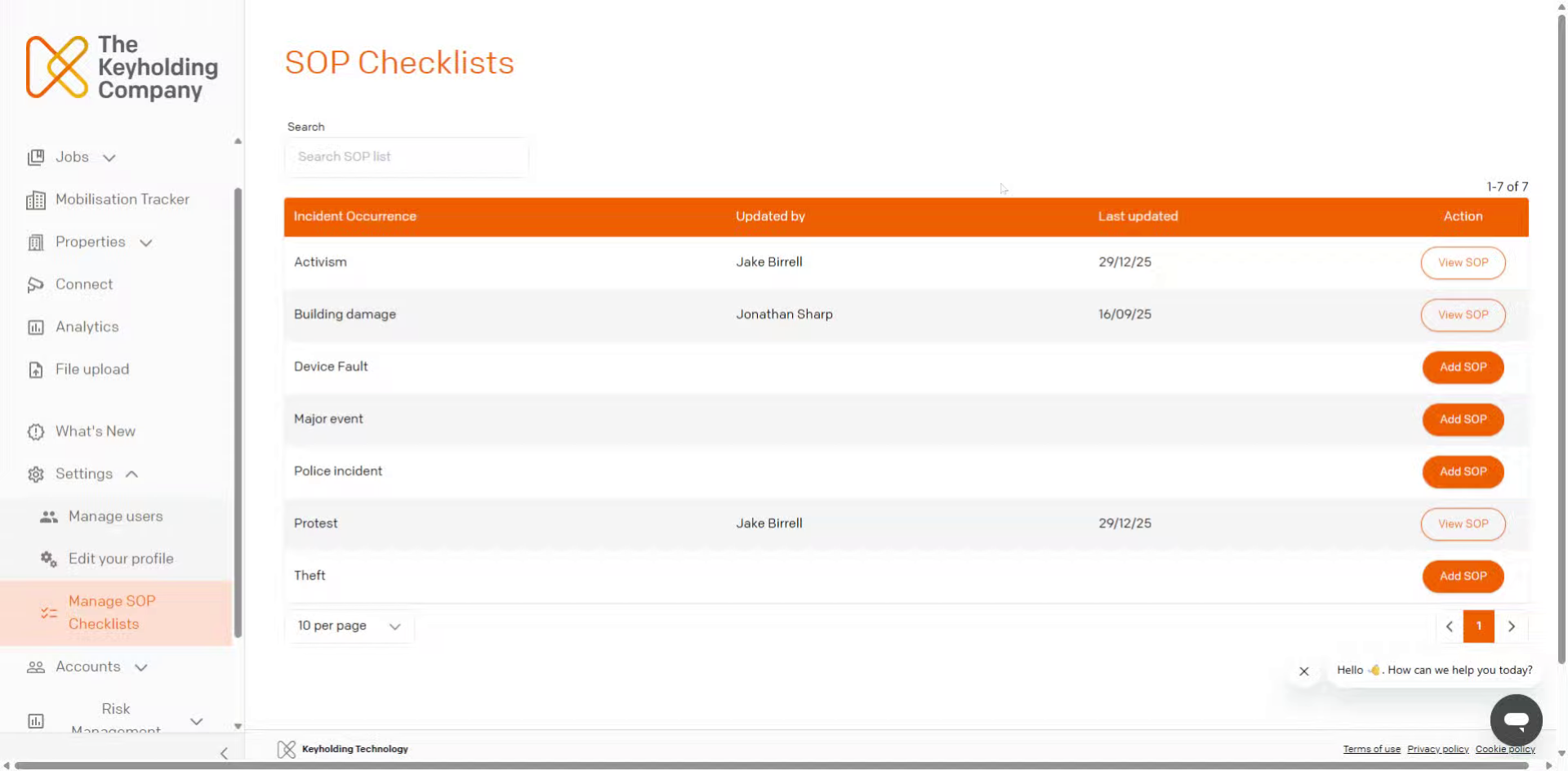
In the left-hand sidebar of the keyholding company platform interface, you will see a Settings option. Click the dropdown on the settings option and click on Manage SOP Checklists.
Here you will see the following, with a row for each Incident type. You can quickly search for an Incident type using the search bar. If an Incident type has an SOP configured, you will see the account details of the last person who updated the SOP and the date of that last update.
02
View Specific SOP Details
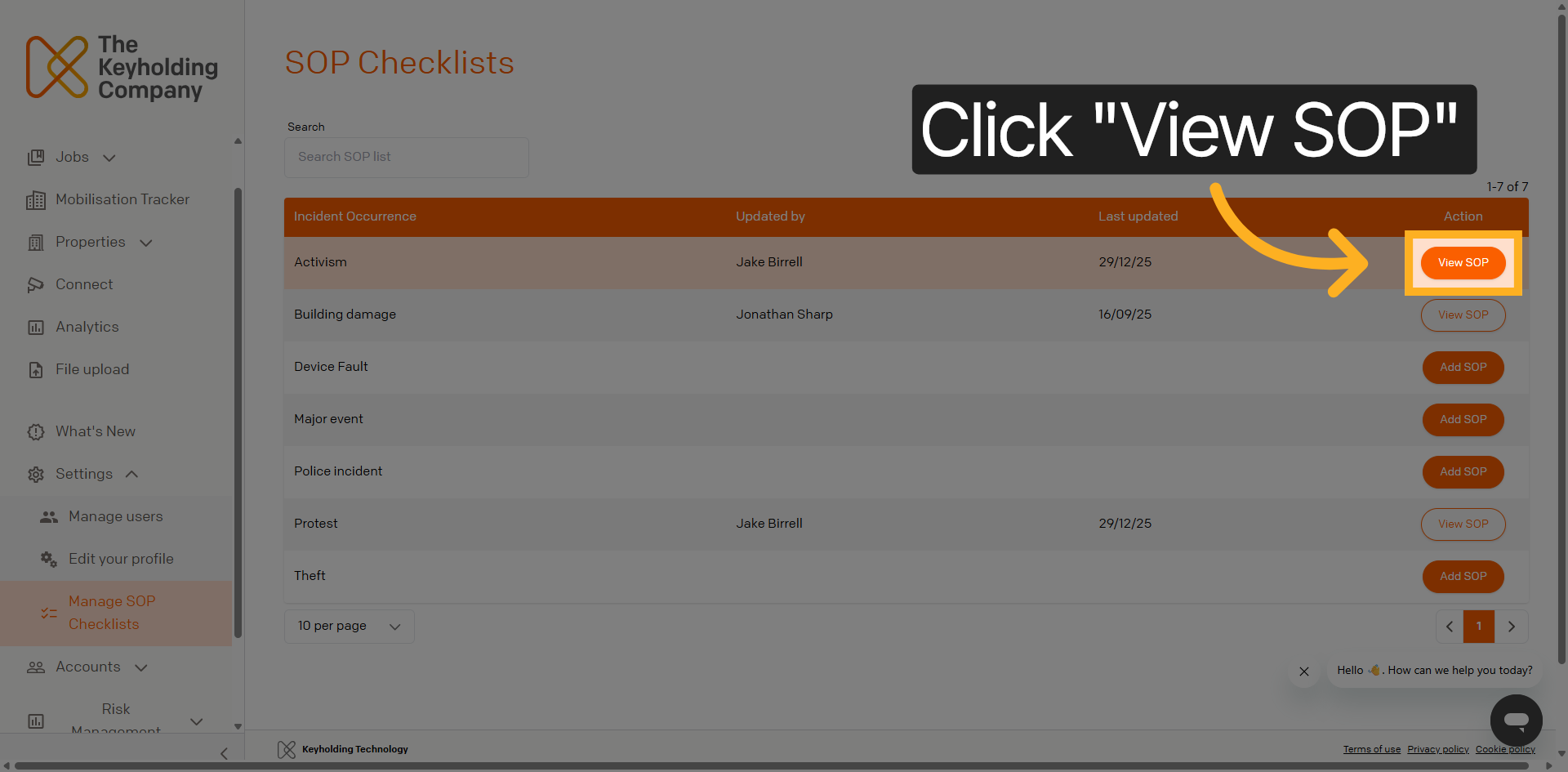
Click View SOP to access the selected Standard Operating Procedure steps and open management options. Click Add SOP to create an SOP for the Incident type.
03
Enter SOP Edit Mode
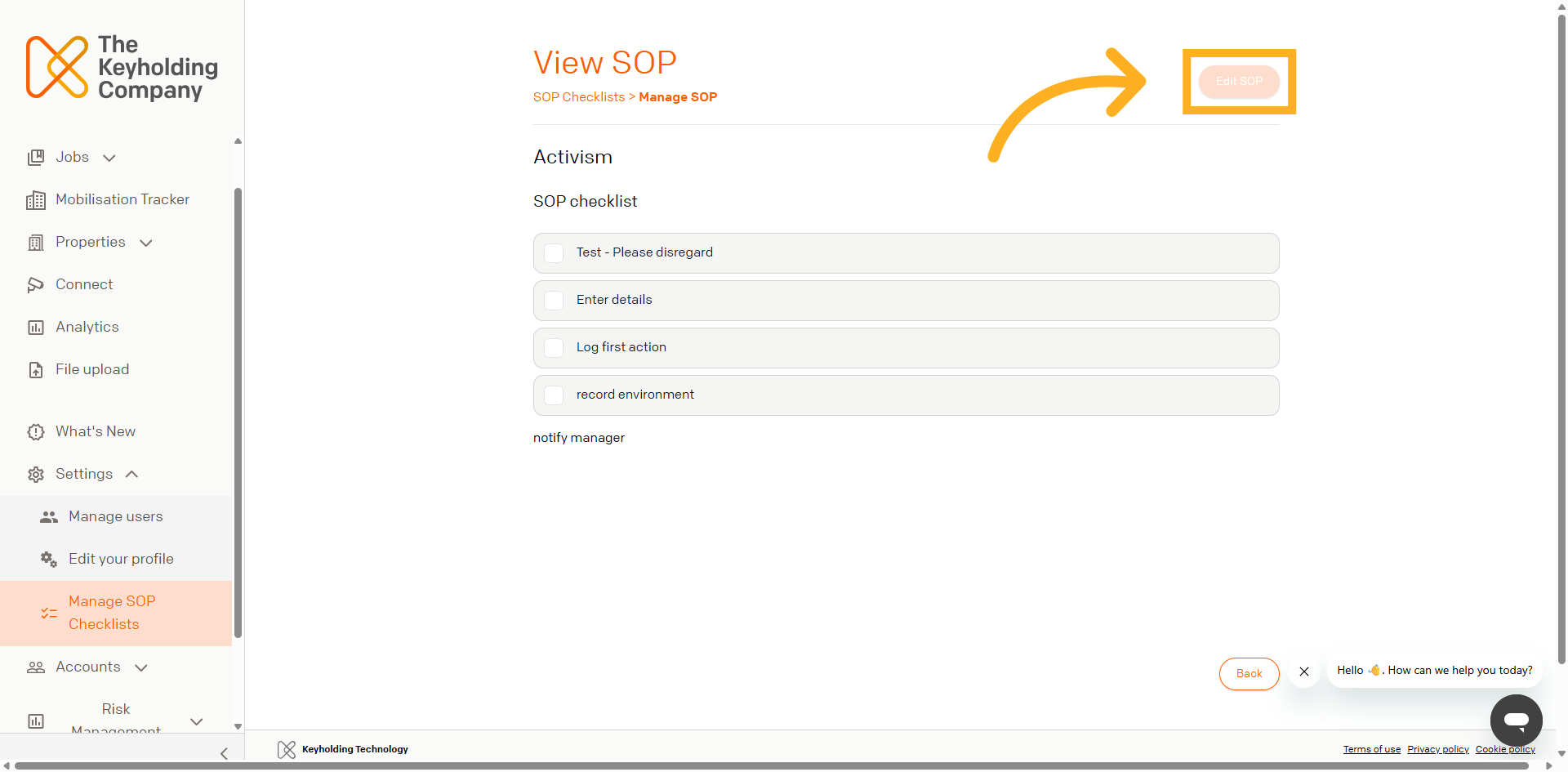
Now you will see the SOP configured to the Incident type. Click "Edit SOP" to begin modifying the selected Standard Operating Procedure's content.
04
Add New Checklist Step
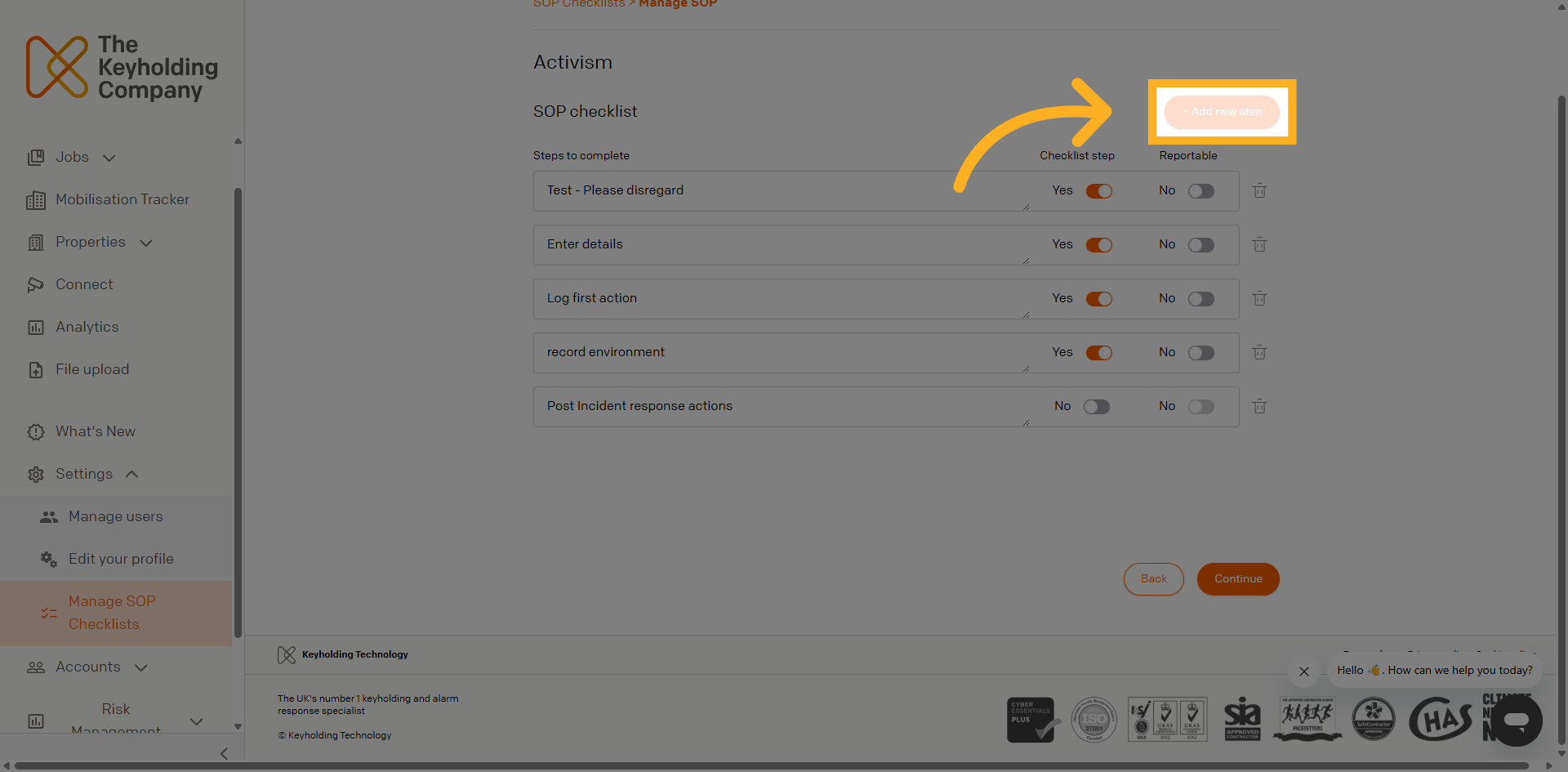
Click "+ Add new step" to insert an additional step into the SOP checklist.
The toggle for Checklist Step determines if the item in the checklist comes with a tick box. You may want to disable this to separate your SOP into subsections, as will be outlined in steps 6 and 7 of this section.
The toggle for Reportable determines whether actions against the checklist item reports into the Command data analytics.
05
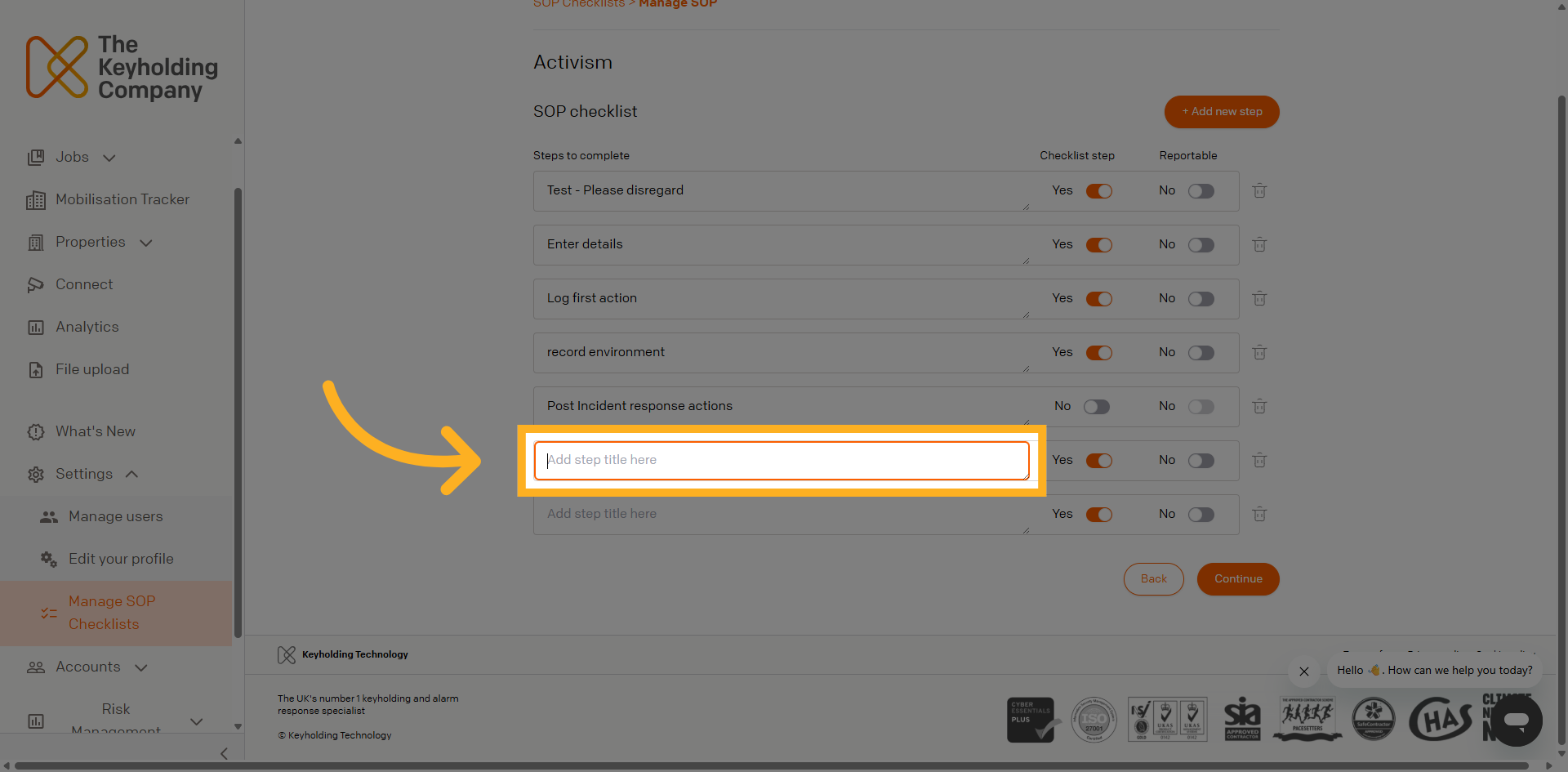
Select Step Title Field
Click "Add step title here" to begin naming the new checklist step appropriately.
06
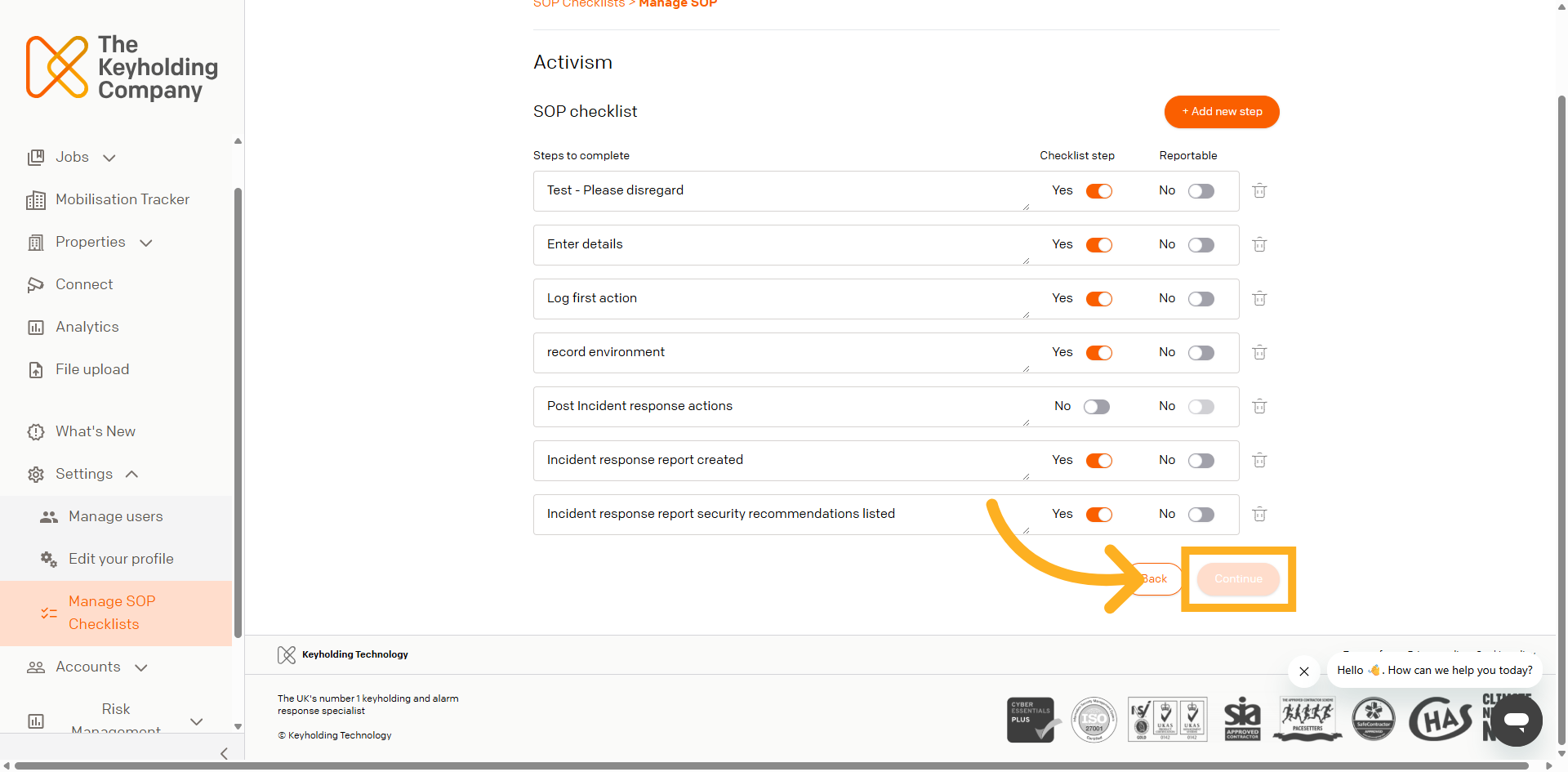
Proceed to Next Step
Click "Continue" to move forward in the SOP editing process after entering the necessary information.
07
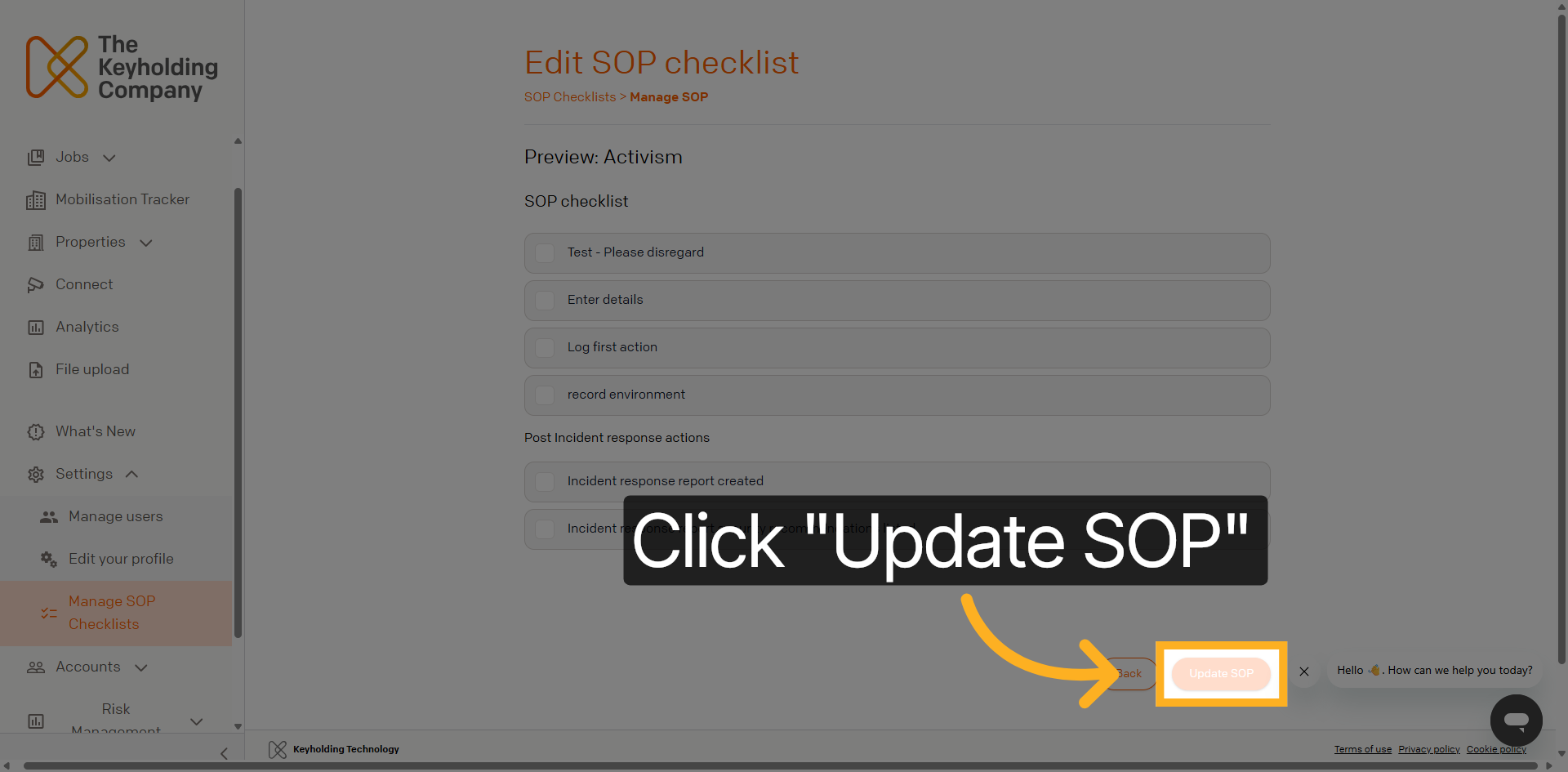
Save SOP Updates
Click "Update SOP" to save all changes and finalise the updated Standard Operating Procedure.
You will see below that the list item that had the Checklist Step toggle switched off can be used to divide the checklist into sections.
You have successfully managed and updated the Standard Operating Procedures within the Keyholding Company platform. This process ensures that incident response actions and security recommendations are clearly documented and communicated for effective operational management.