This section explains how to locate the Command Live Dashboard and how to create a new Occurrence within Command. Creating an Occurrence allows an event to be formally recorded and managed through the keyholding company platform as an incident.
Once an Occurrence has been created, users can use Command’s features to notify relevant staff, share updates, and track the incident through to resolution. The resulting incident record acts as a single source of truth during the response and becomes an auditable record that can be reviewed to support reporting and continuous process improvement.
For example, if a person becomes trapped in a lift, creating an incident in Command allows nearby staff to be notified quickly so that appropriate action can be taken. Responding staff can add updates as the situation develops, enabling managers to monitor progress in real time. Once the incident is resolved, completing the incident record contributes to historical reporting, helping to identify trends and improve both preventative measures and response effectiveness.
Go to platform.keyholding.com
01
Navigate to the Command Live Dashboard
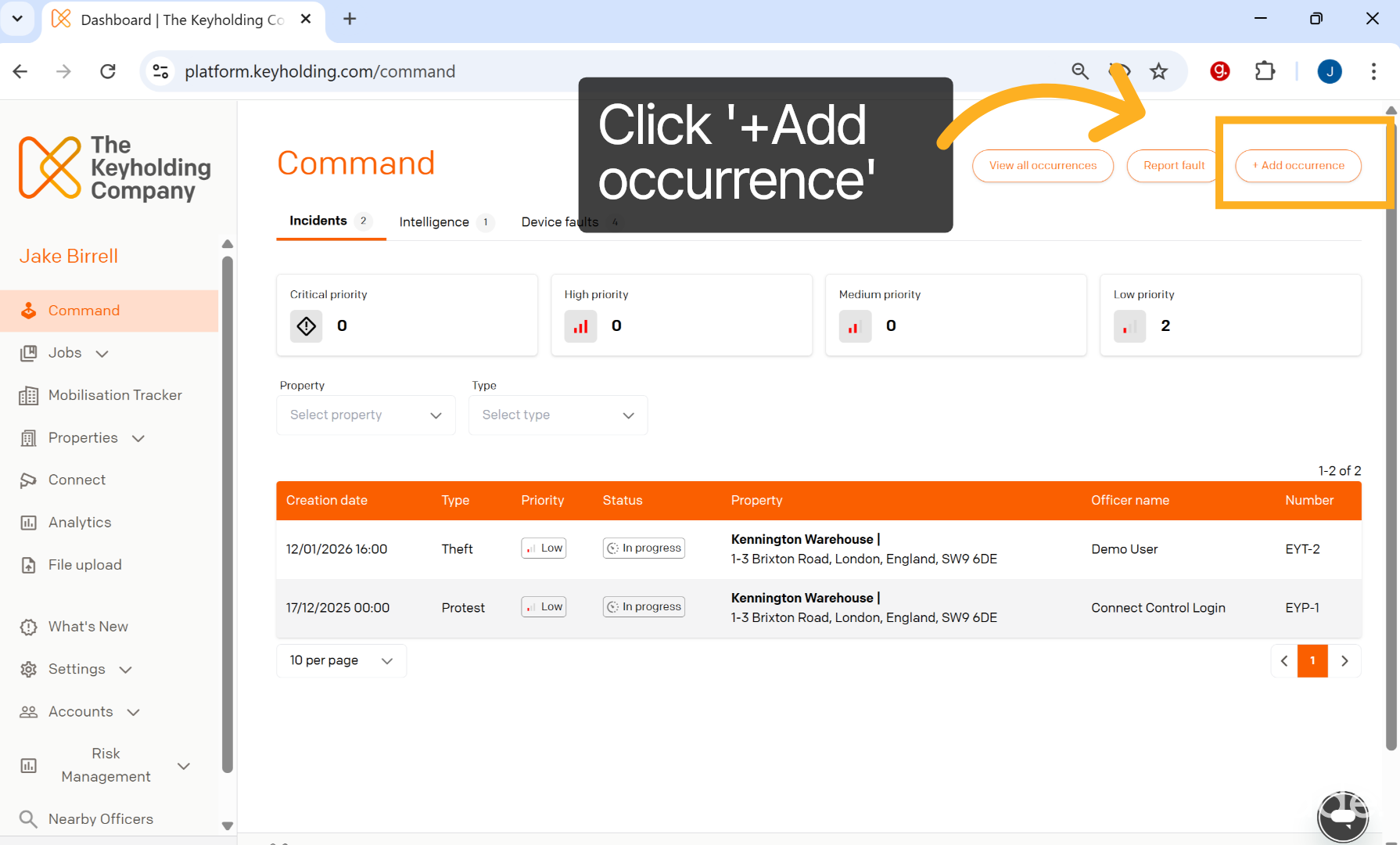
To navigate to the Command Live Dashboard, click on the Command label within the left-hand sidebar. This should reveal a dashboard as shown in the image below. Click on the 'Add Occurrence' option to begin registering a new occurrence.
02
Enter High-Level Occurrence Details
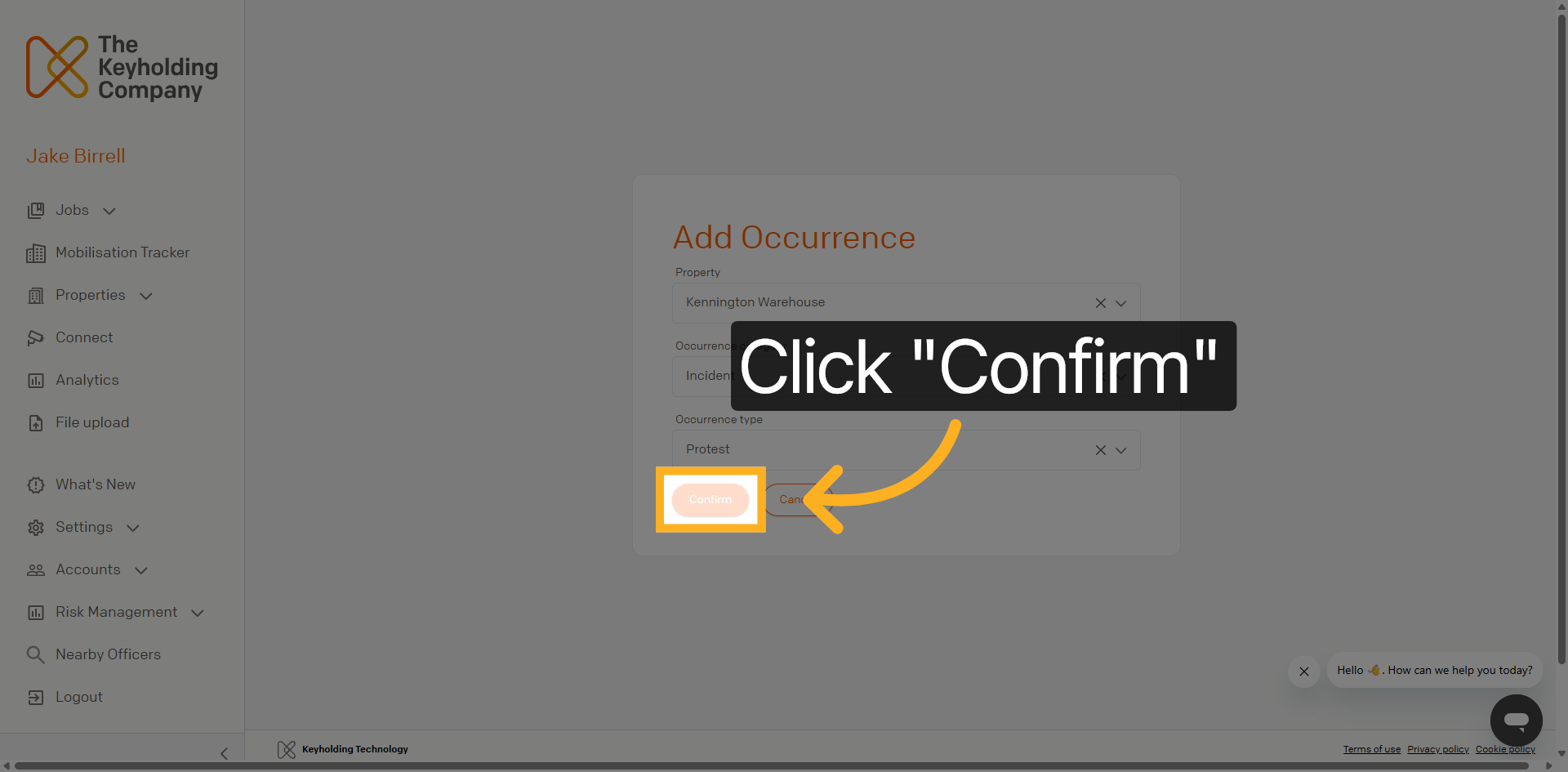
Use the property search field to select the relevant property. Secondly, select the occurrence category as an Incident, and select the incident occurrence type from the drop-down options. Once complete, click the confirm button.
03
Adding Incident Occurrence Details
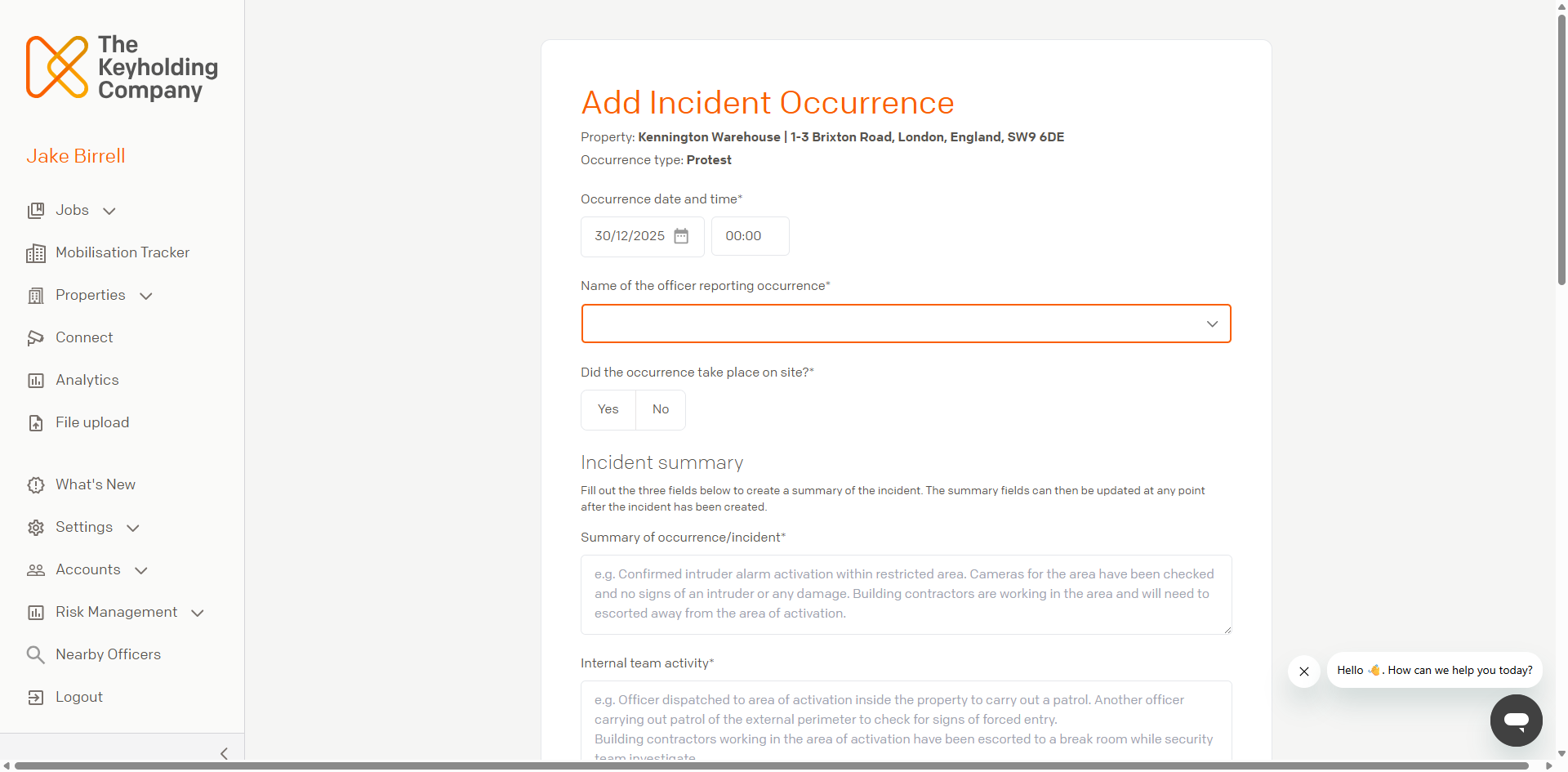
On this page, you are presented with a form to record the incident details. Fill out the form and try to be as detailed as possible.
04
Confirm Incident Details
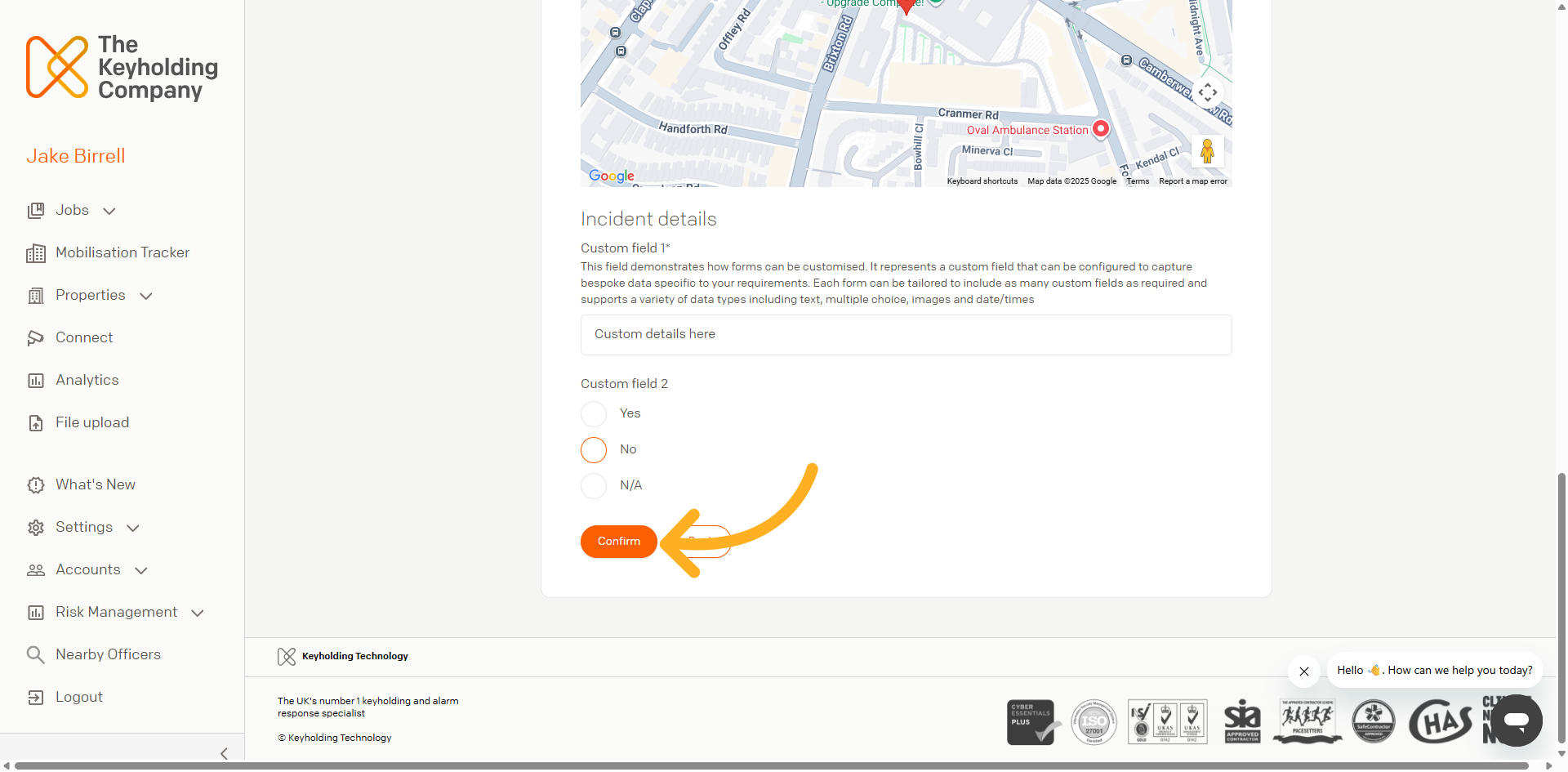
Once you have completed entering the required details, click confirm to create the Incident.
You have successfully located the Command Live Dashboard and created a new Occurrence by entering all required details accurately. The next section will guide you through locating an occurrence to view the occurrence summary you have just created.