This section explains how to record and update information for active Occurrences within Command. The Occurrence timeline provides a live, chronological view of an Occurrence as it develops.
Staff can add updates to the timeline as events occur, creating a clear record of the Occurrence and the actions taken in response. This helps ensure all team members share a common understanding of the current situation and reduces the risk of duplicated actions during the response.
01
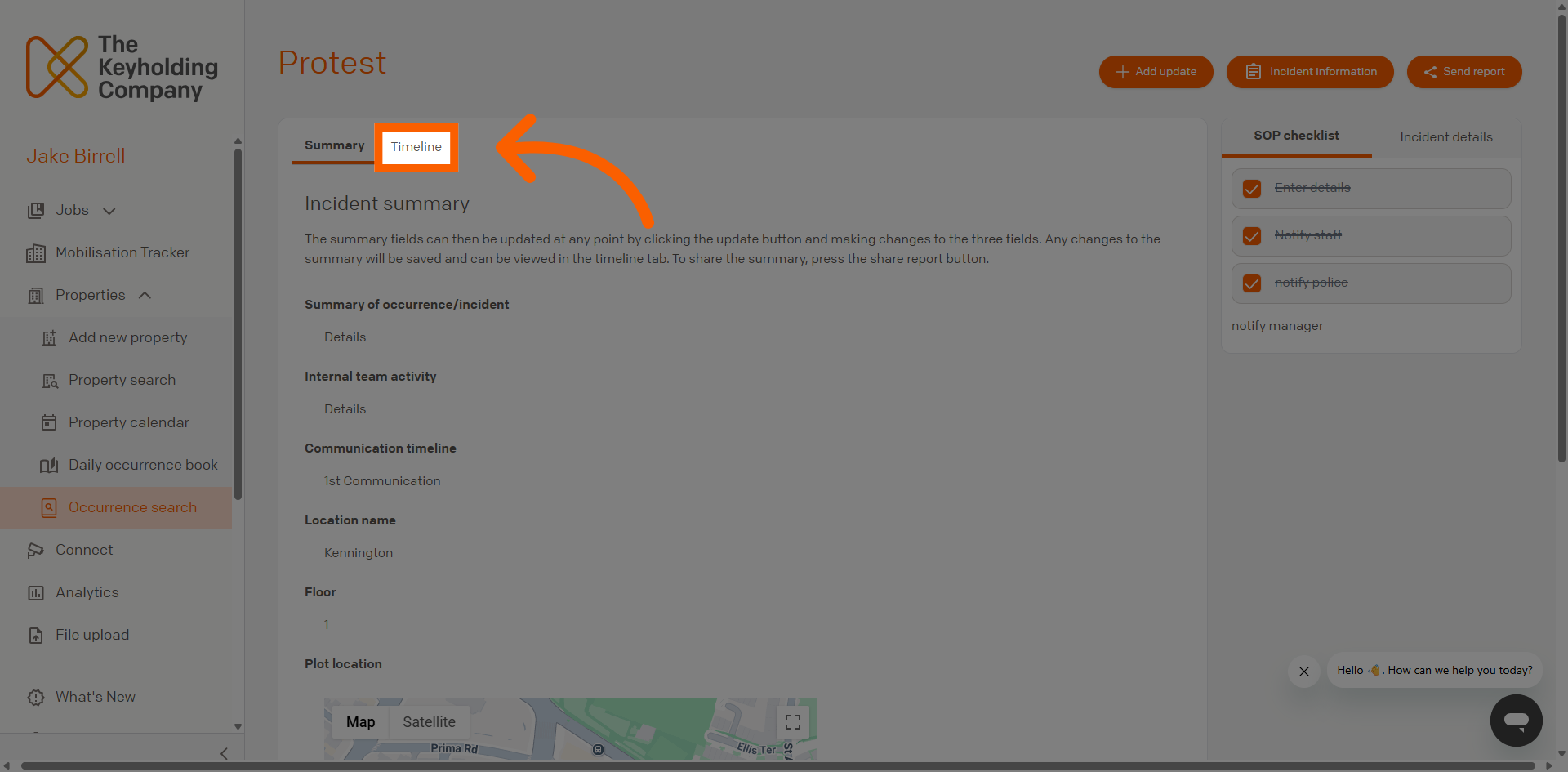
Open Occurrence Timeline
From the Occurrence summary page, click Timeline to view the chronological sequence of events and updates related to the Occurrence.
02
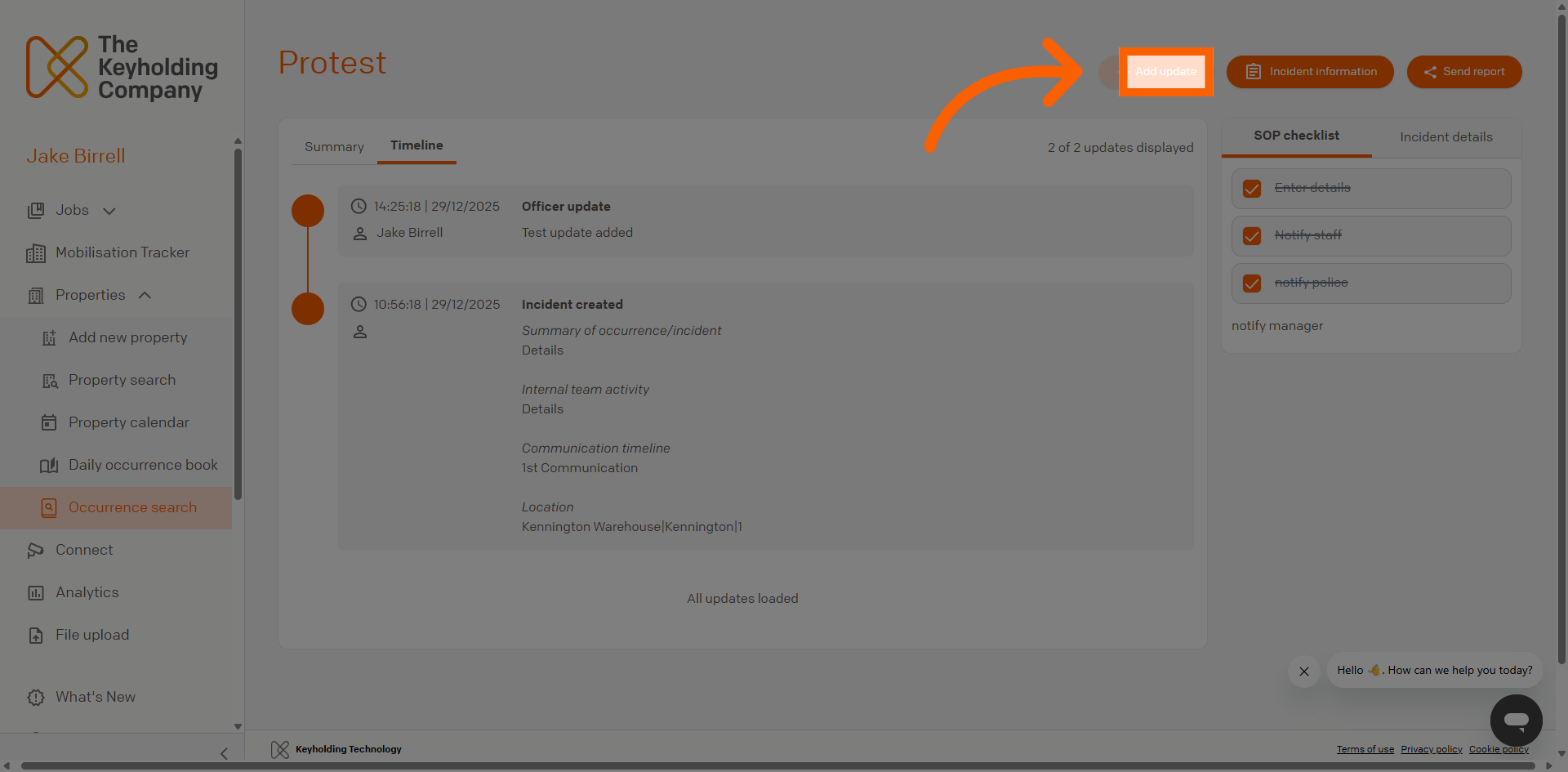
Add New Update
Click Add update to begin entering new information about the Occurrence.
03
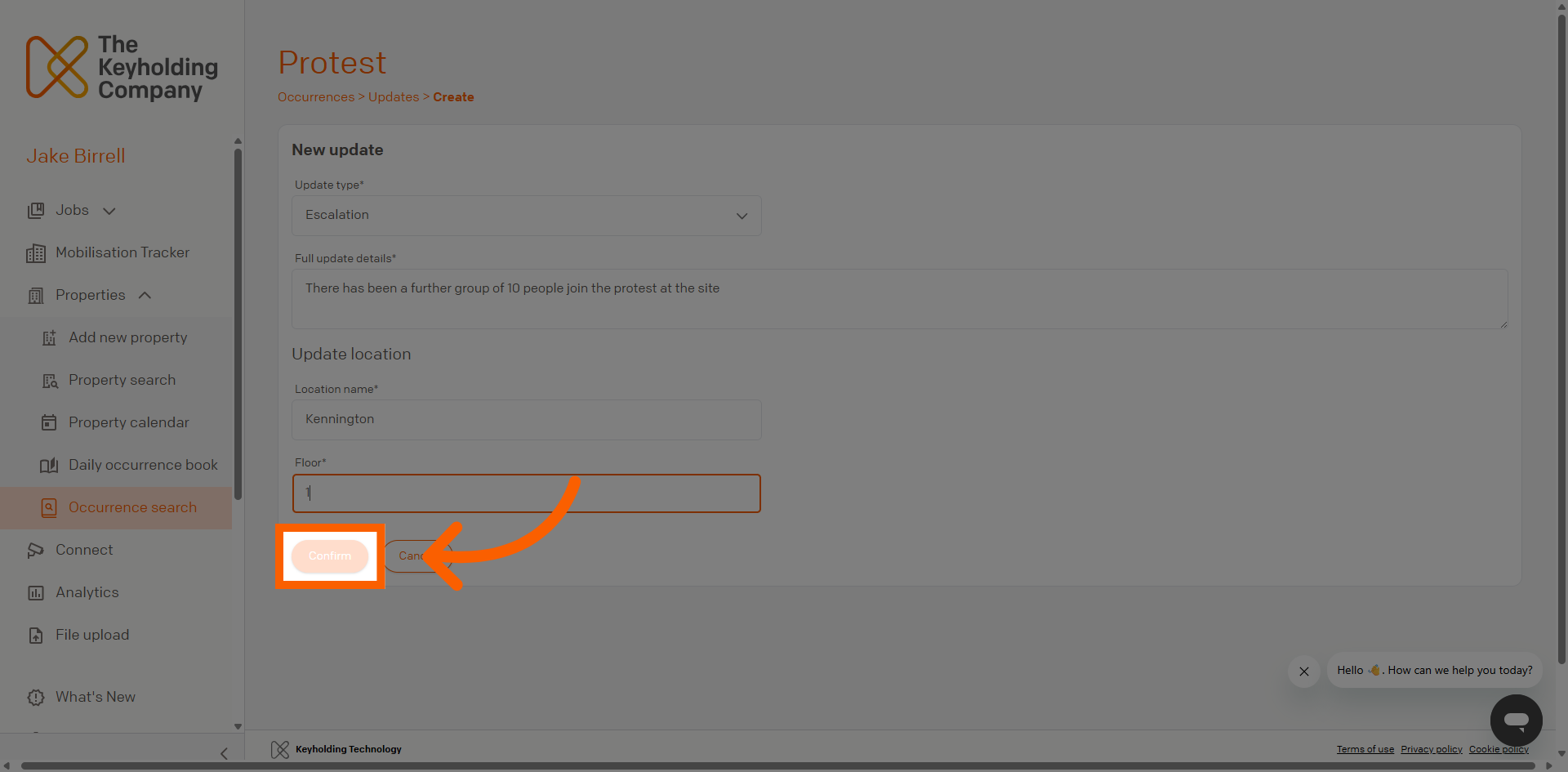
Confirm Update Submission
Add the update details, and once completed, click Confirm to save the new update and apply changes to the Occurrence record.
04
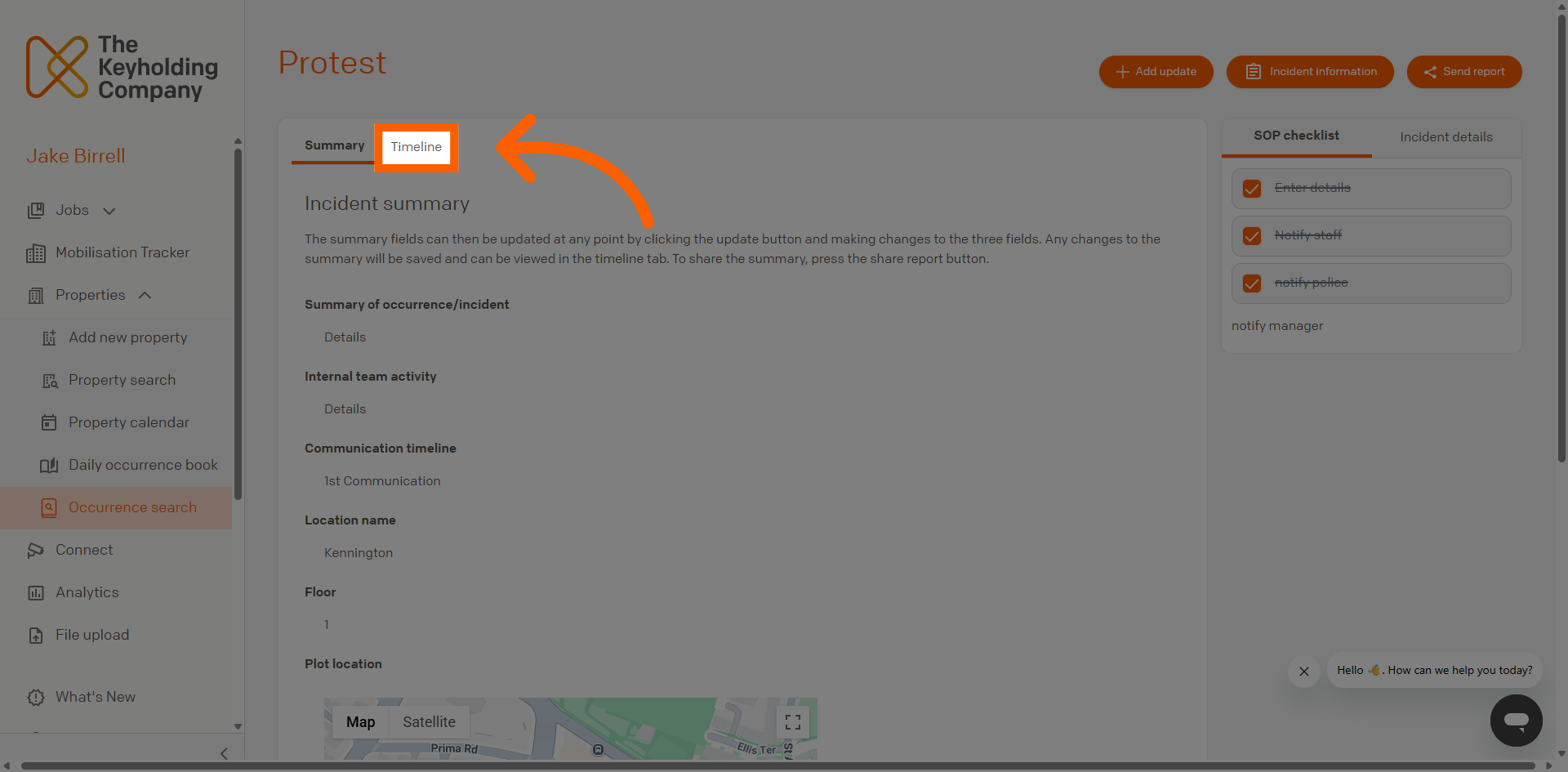
Return to Occurrence Timeline
Click Timeline to review the updated sequence of events and verify that the new information is recorded.
05
Access Additional Options
You should now see the timeline with the additional update that you have added. Now your team will be able view the update, thereby making them aware of the current situation.
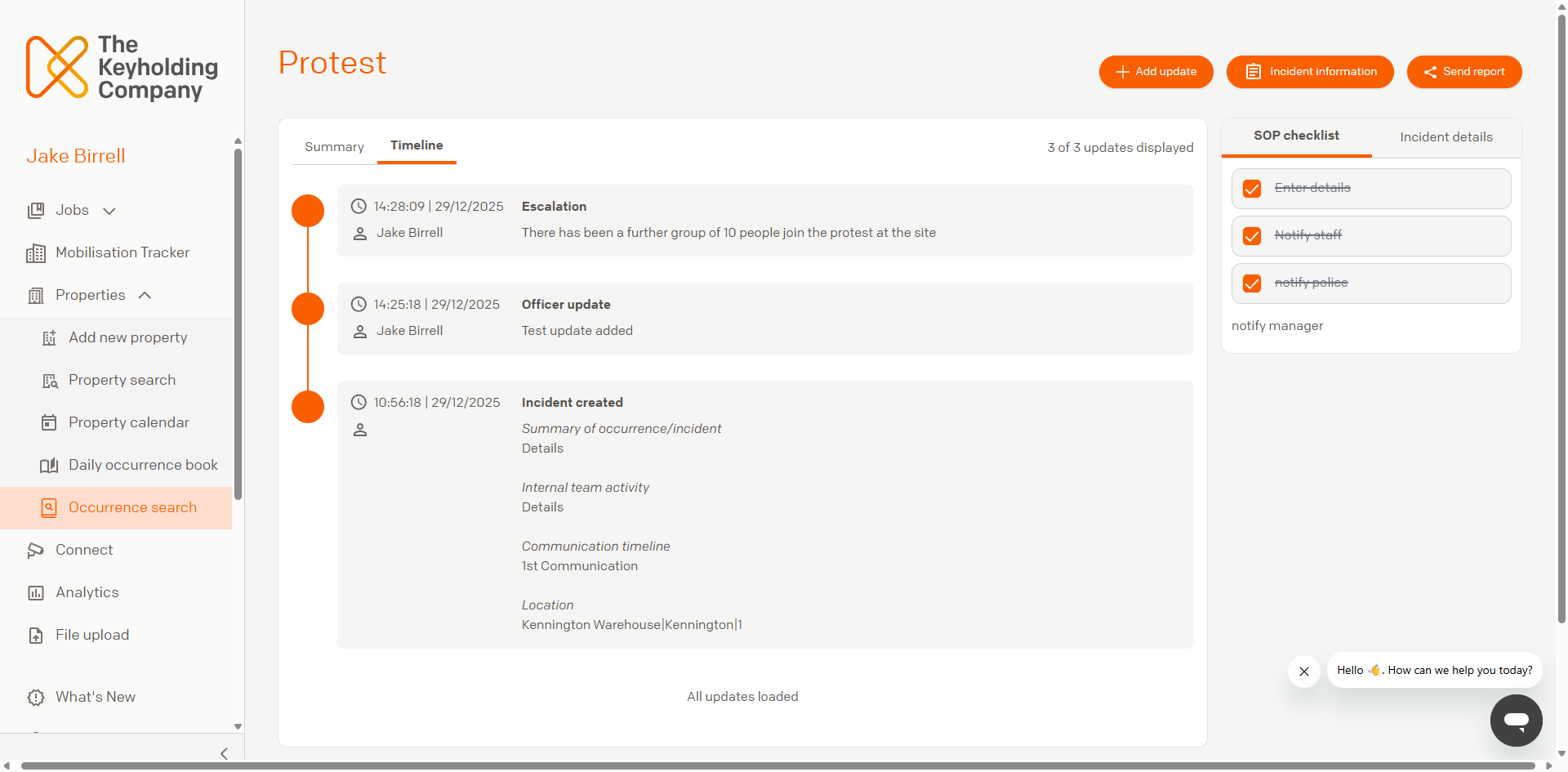
You have successfully recorded and updated information for an active Occurrence in Command. Review the Occurrence timeline to confirm all updates are accurately reflected and proceed with further Occurrence management tasks as needed.