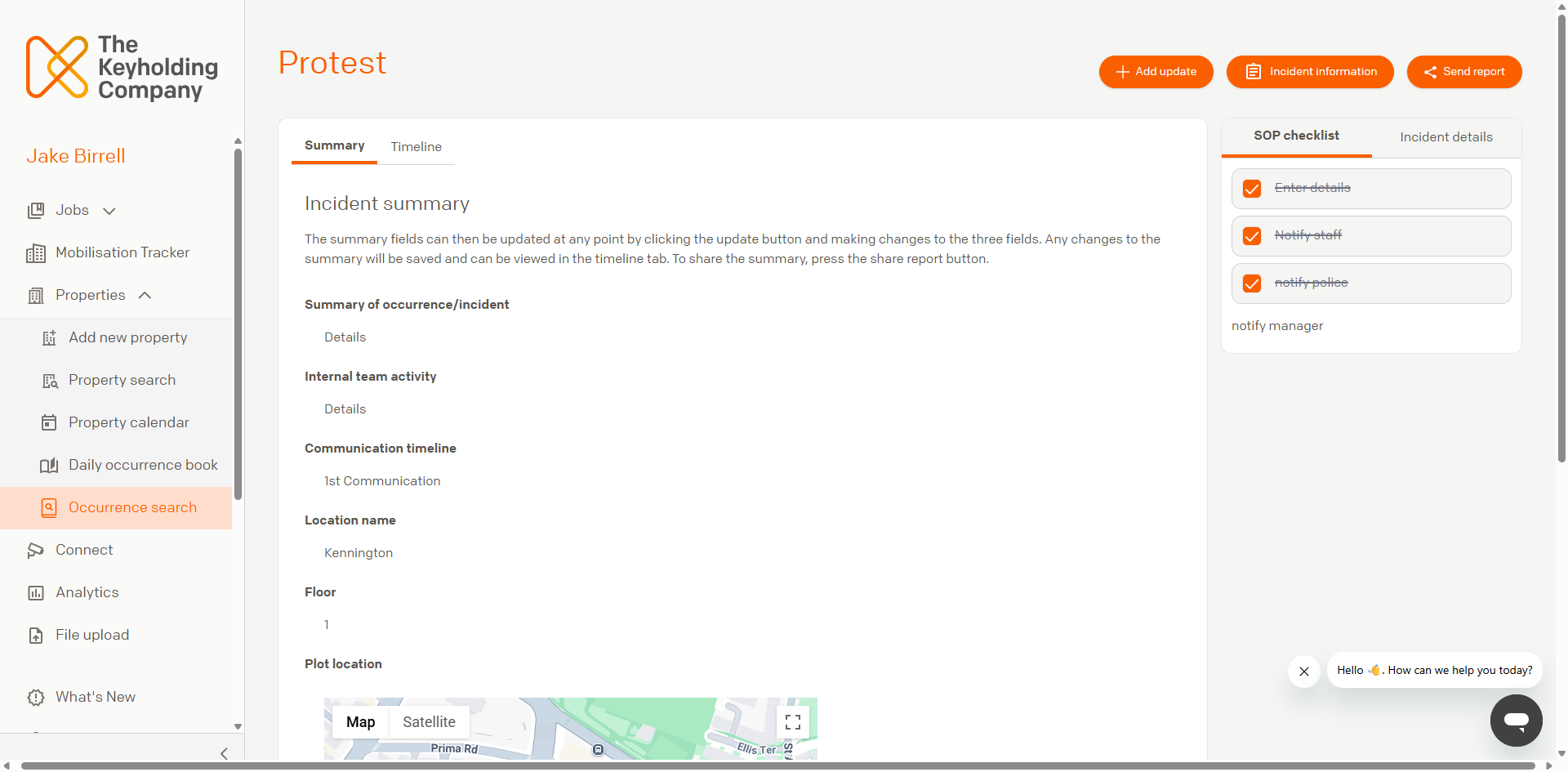
This section outlines how to locate a created occurrence in the keyholding company platform. Once located, you will then be able to open the occurrence to view the occurrence summary and take further management actions.
There are two ways to locate an occurrence within the platform. The Command Live Dashboard provides an instant overview of active occurrences, and through the use of the available filtering options, you can locate a specific active occurrence.
For all other occurrences, the 'occurrence search' page can be used.
01
Using the Command Live Dashboard to Locate an Occurrence (for active occurrences)
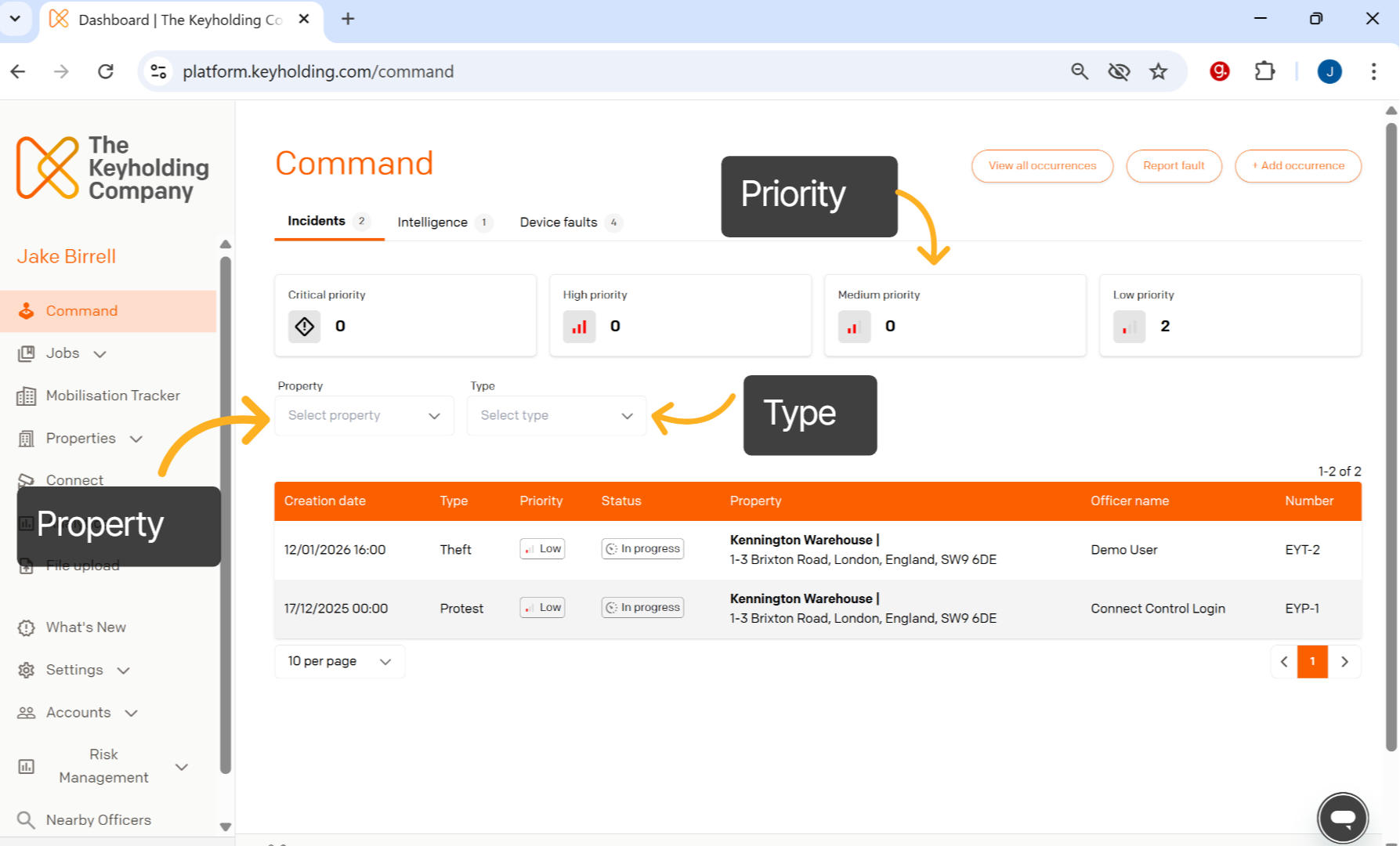
For active incidents, the Command Live Dashboard is the fastest way to locate an occurrence. By selecting the 'Command' label in the left-hand sidebar, you will be presented with the Command Live Dashboard.
From the Command Dashboard, you can filter by priority, property and occurrence type to locate a specific occurrence. Once you have located the occurrence, you can open up the occurrence summary page by clicking on it.
02
Navigate to Occurrence Search (for non-active occurrences)
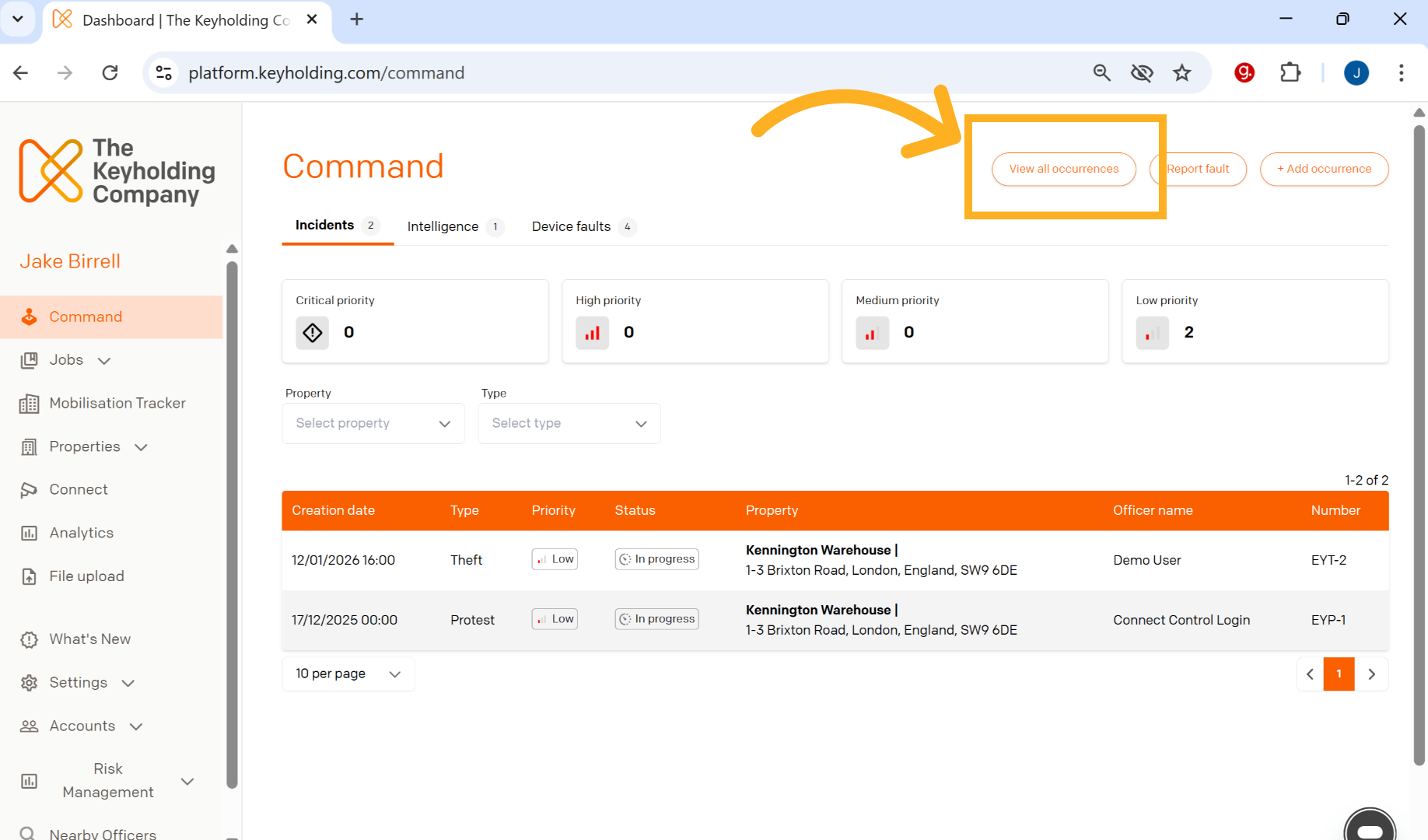
Because the Command Live Dashboard shows only active occurrences, you need to use the occurrence search table to find non-active occurrences. This can be navigated to from the Command Live Dashboard by selecting the 'View all Occurrences' button, as shown in the image below.
03
Locating the Incident Record Within the Occurrence Search Page
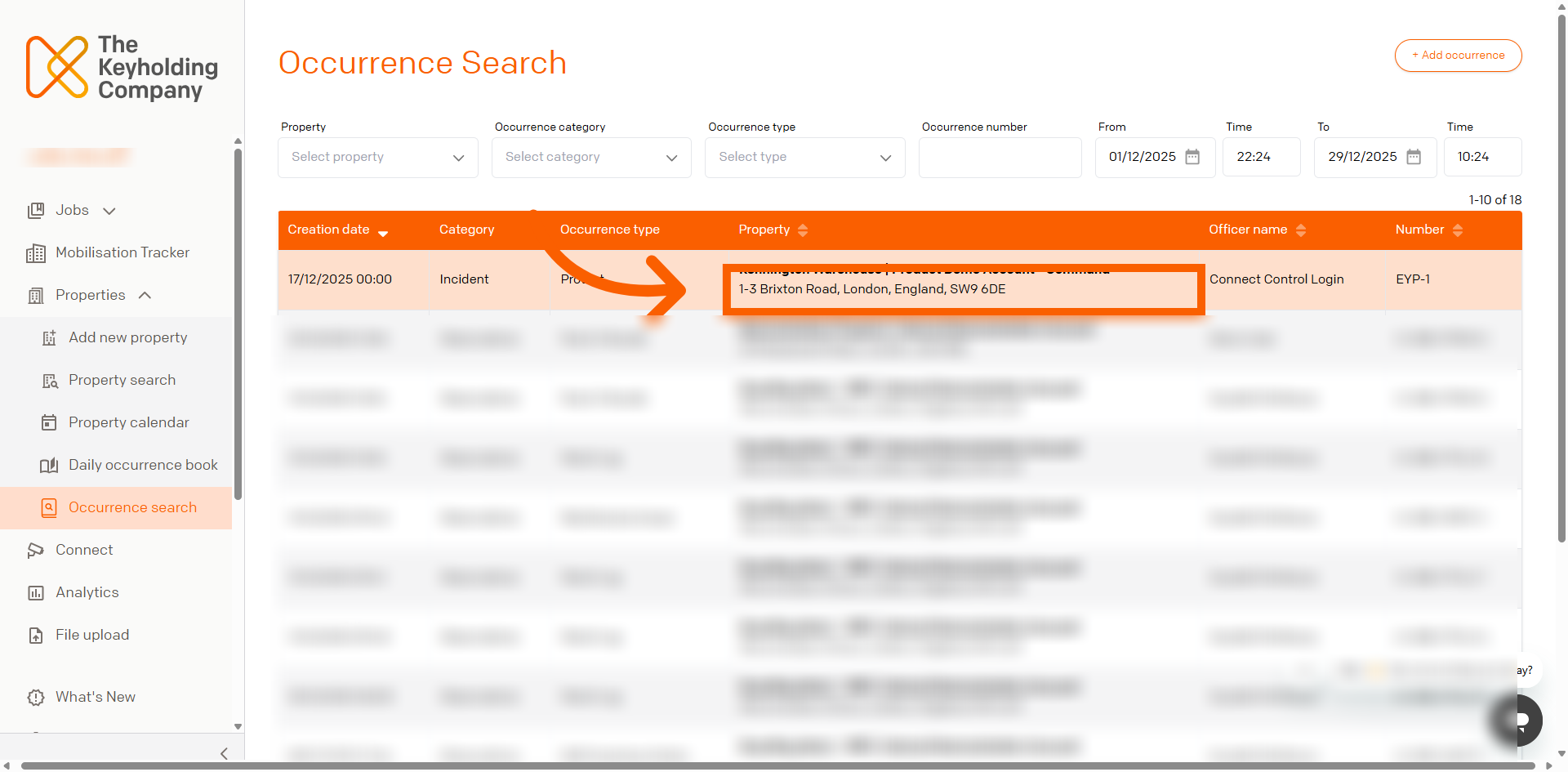
Use the search filter parameters to find relevant occurrences. Once you have located the correct incident within the table, simply click on it to open up the incident summary page.
04
View Incident Summary
Now that you have opened the Incident, you will be able to view the Incident summary and take further incident management actions as outlined in the following sections of this guide.