This section explains how to update both the priority and overall status of an Occurrence. All updates, along with any accompanying details, are recorded on the Occurrence timeline.
Updating the priority status of an Occurrence ensures it appears in the appropriate category on the Command Live Dashboard, allowing it to be responded to appropriately. When applying a priority update, users can provide contextual details explaining the reason for the change. This helps align teams on urgency and creates an audit trail for future reference.
Updating the overall status of an Occurrence ensures that only active Occurrences are displayed on the Command Live Dashboard, clearly indicating which items require an active response. Additional details can be included with the status update to support effective communication and auditing.
01
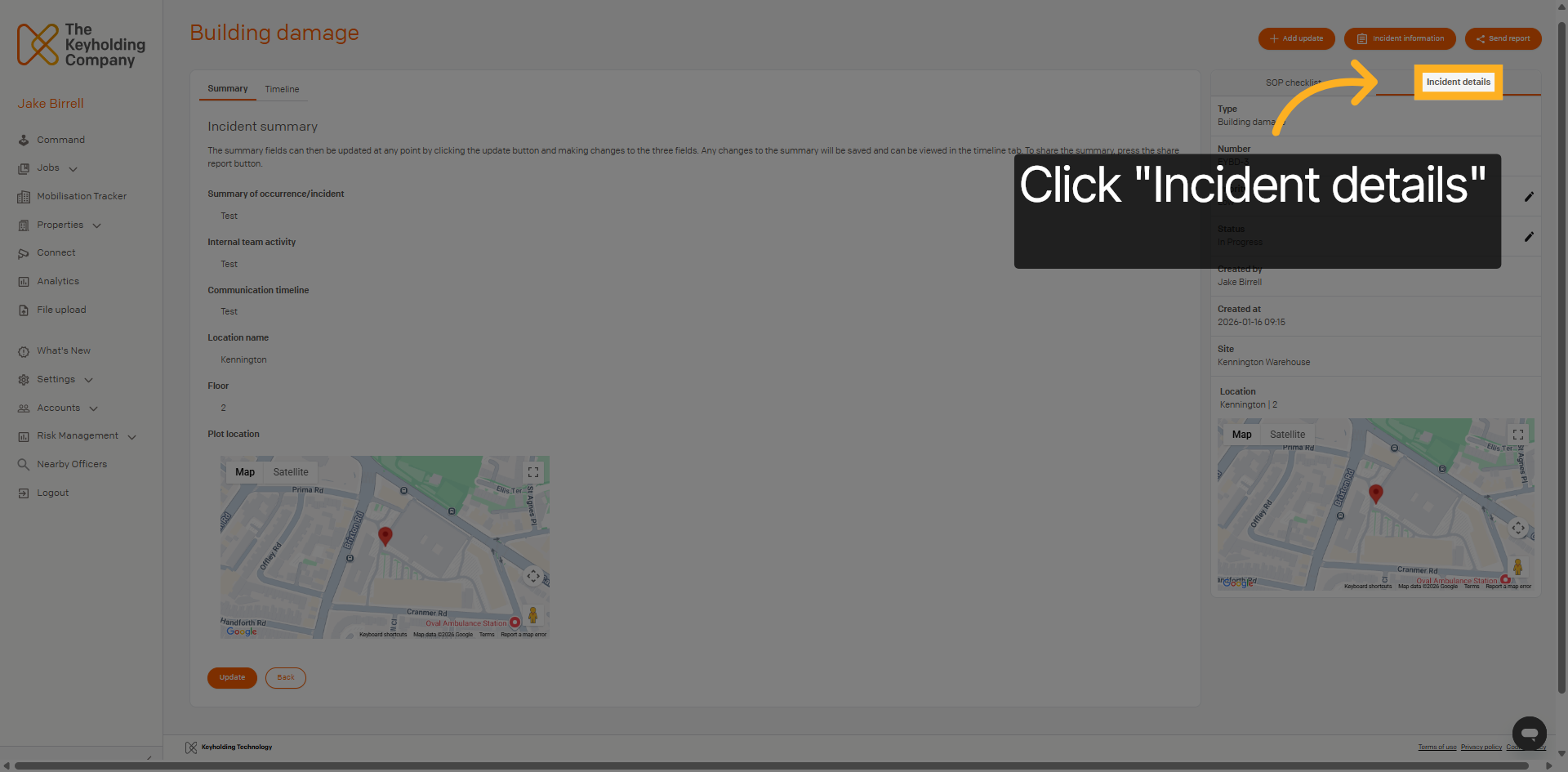
Navigate to Incident Details
Click the Occurrence details section to access the occurrence information you need to update. From this panel, you should see the 'Priority' and 'Status' sections denoting the current priority and overall status for the Occurrence.
02
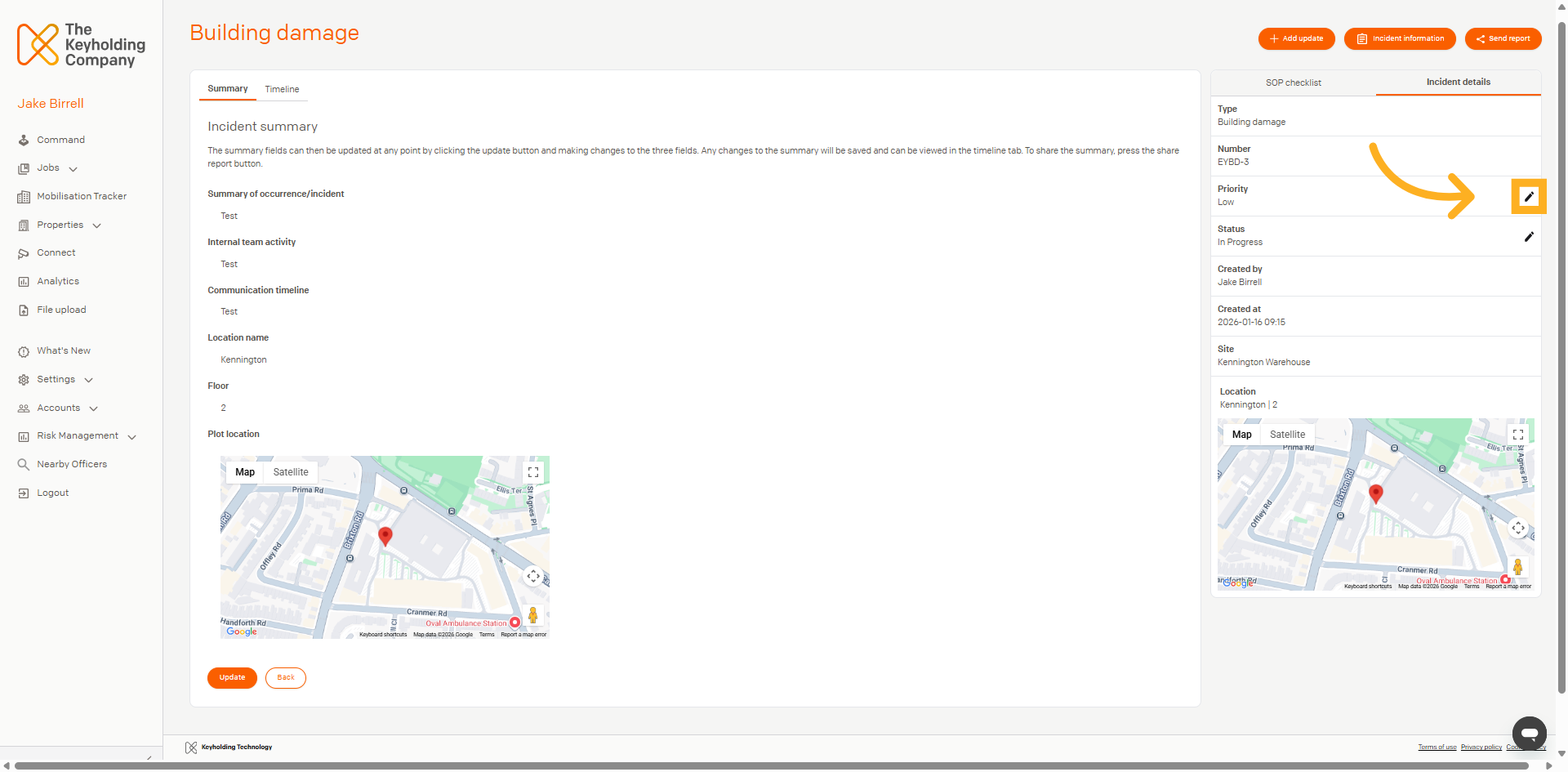
Edit Priority Status
To edit either status, click the pencil icon that allows you to modify the status of the occurrence.
03
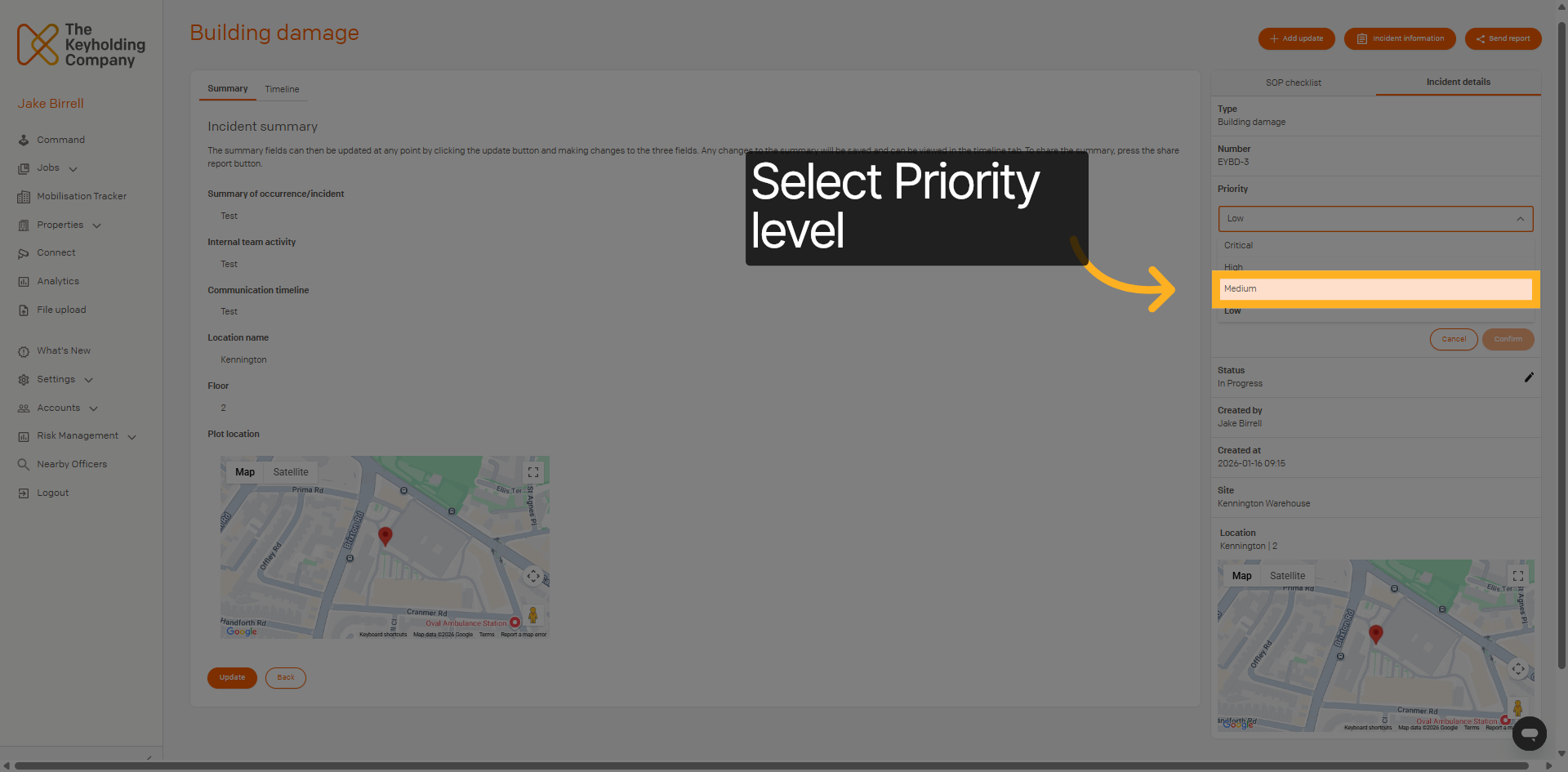
Select Priority Level
Use the dropdown to select the priority level to indicate the current urgency of the incident. Once the change has been made, this priority level will be immediately reflected within the Command Live Dashboard.
04
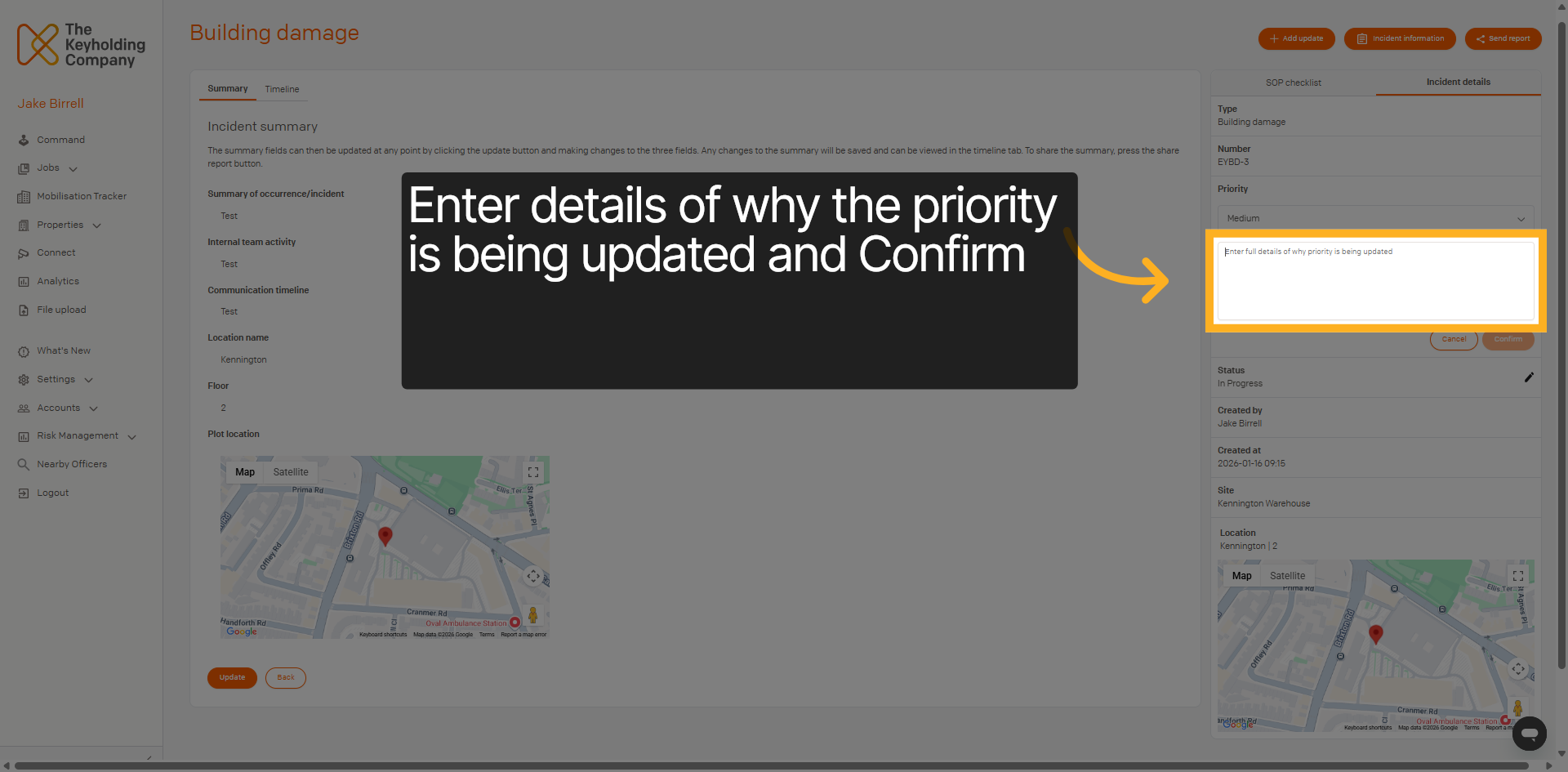
Confirm Priority Status Update
To submit a status update, you are required to enter details pertaining to the status update. This helps to align all stakeholders as to why a status has been updated. Once you have entered this information, select confirm to finish updating the status.
05
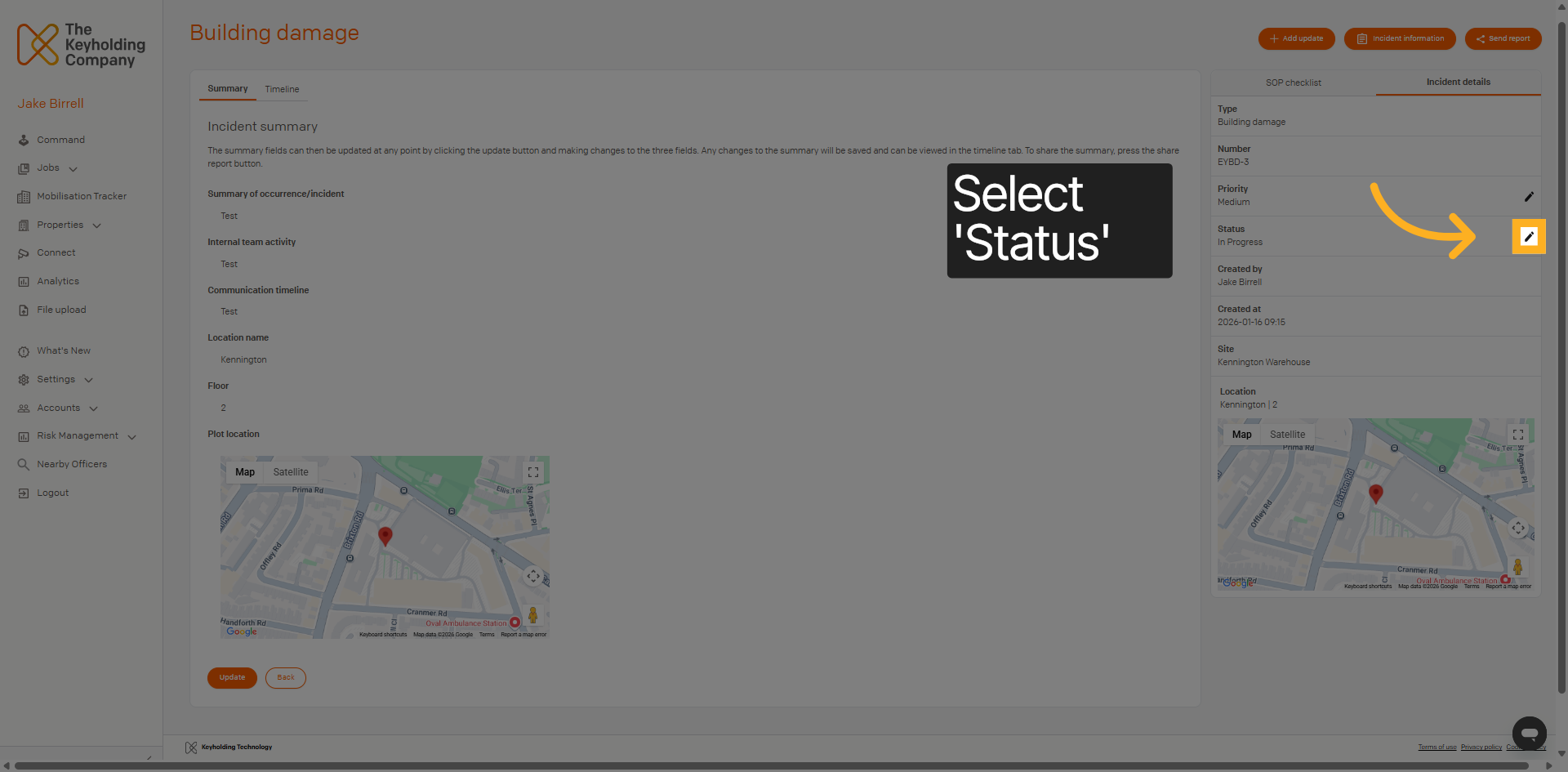
Open Status Settings
Click the pencil icon that allows you to modify the overall status of the occurrence.
06
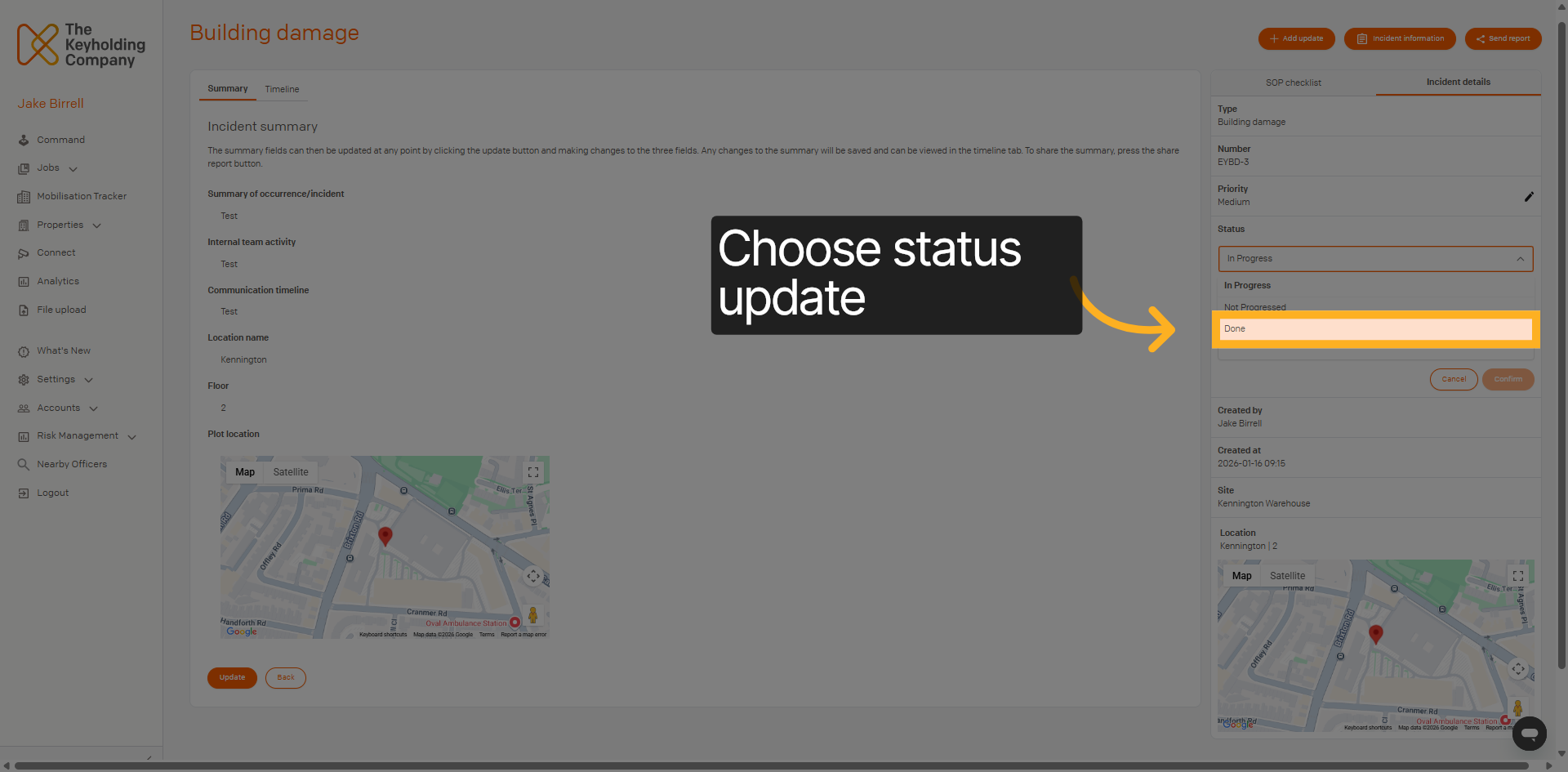
Select Applicable Status
Use the drop-down to select the appropriate status. Changing the status from 'in progress' will remove the occurrence from the Command Live Dashboard, and likewise changing it to 'in progress will add the occurrence to the dashboard.
For any occurrences not held within the Dashboard due to their status, they can be found within the occurrence search page, as explained in the 'locating an occurrence' section of this guide.
07
Confirm Status Update
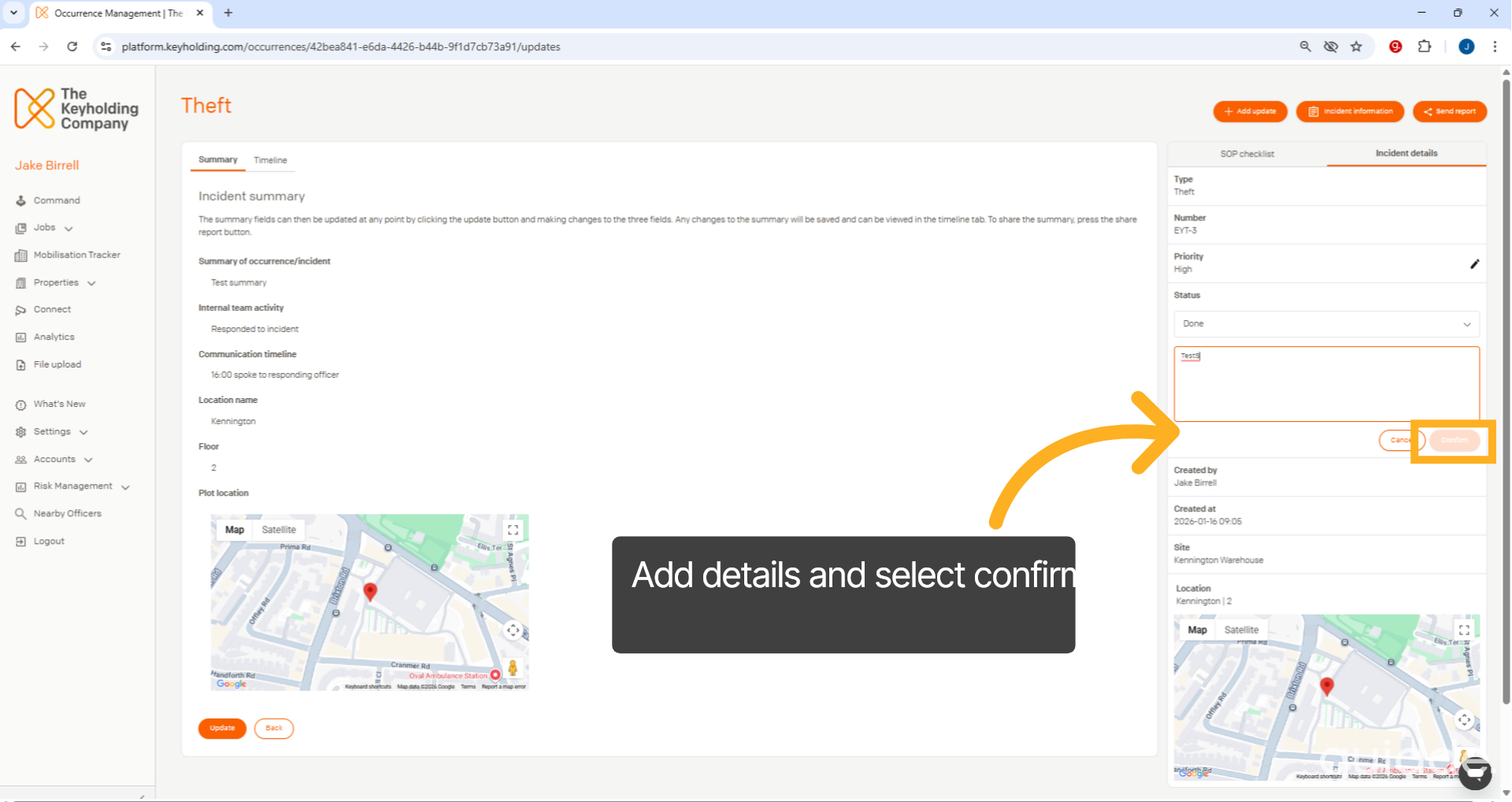
You have successfully updated the status and priority of an occurrence by providing detailed reasons for each change. This ensures accurate tracking and management of incidents within the keyholding company platform.