This section explains how to share Occurrence information with stakeholders via email using Command. This allows recipients without platform access to receive a summary of an Occurrence, with a link to the full record for reference.
During an incident, this feature enables responding staff to share clear status updates with non-user stakeholders, such as account managers or clients, supporting effective communication without disrupting response activities.
01
Initiate Report Sending
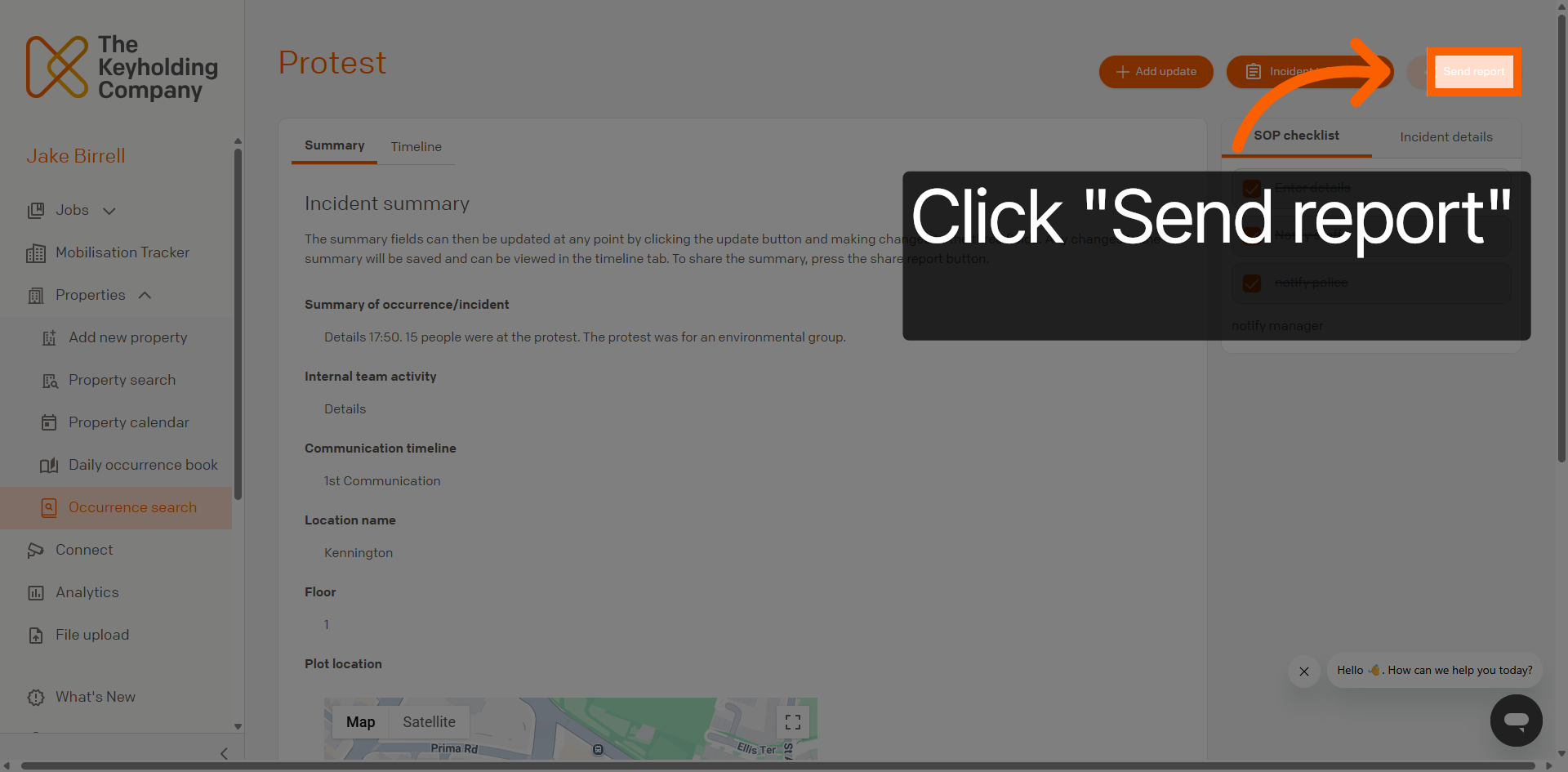
From the Occurrence Summary page, click the Send report button to start the process of sharing Occurrence details.
02
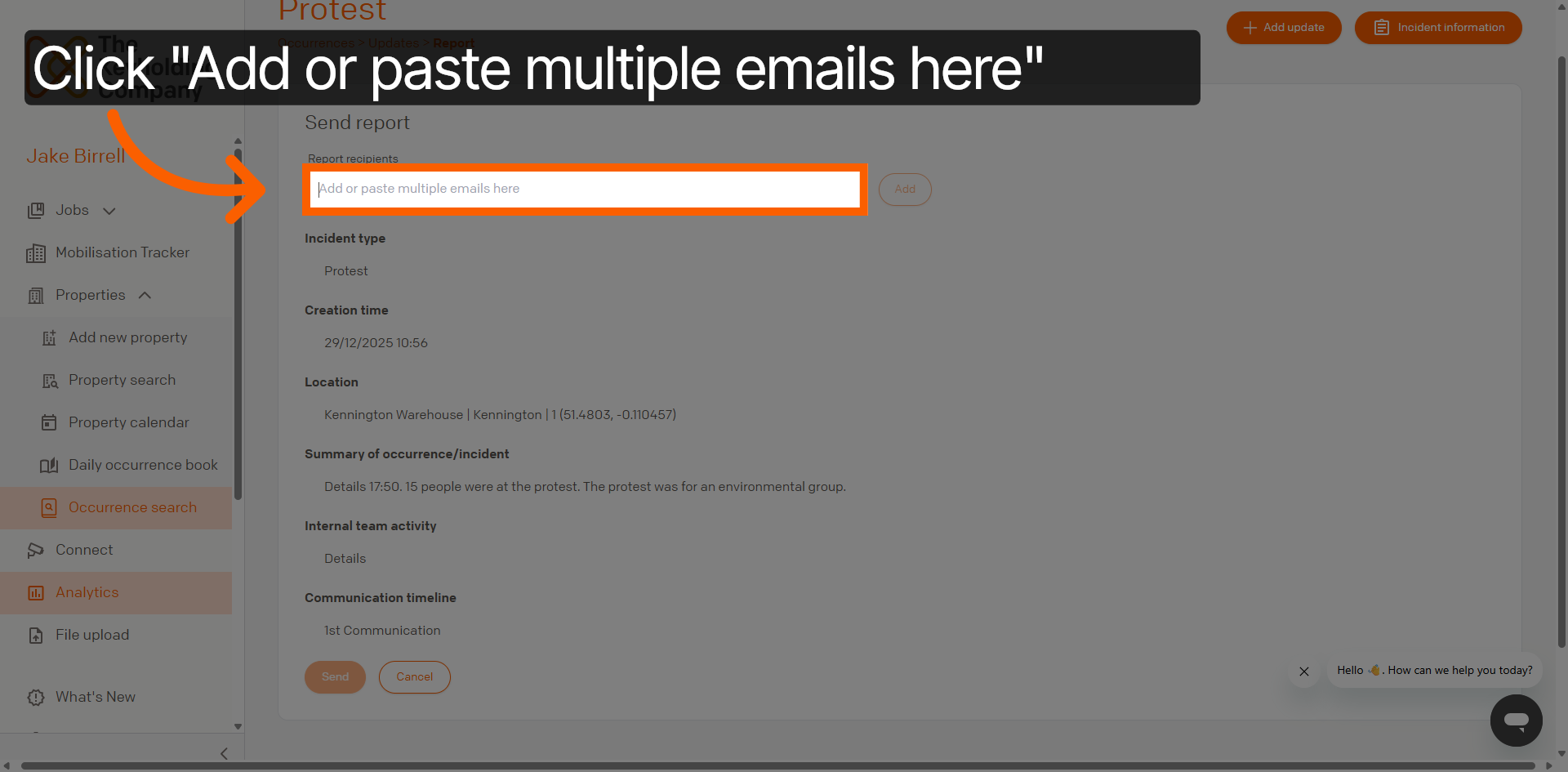
Open Email Input Field
Click the field to add or paste email addresses for report recipients. Multiple email addresses can be added at this point.
03
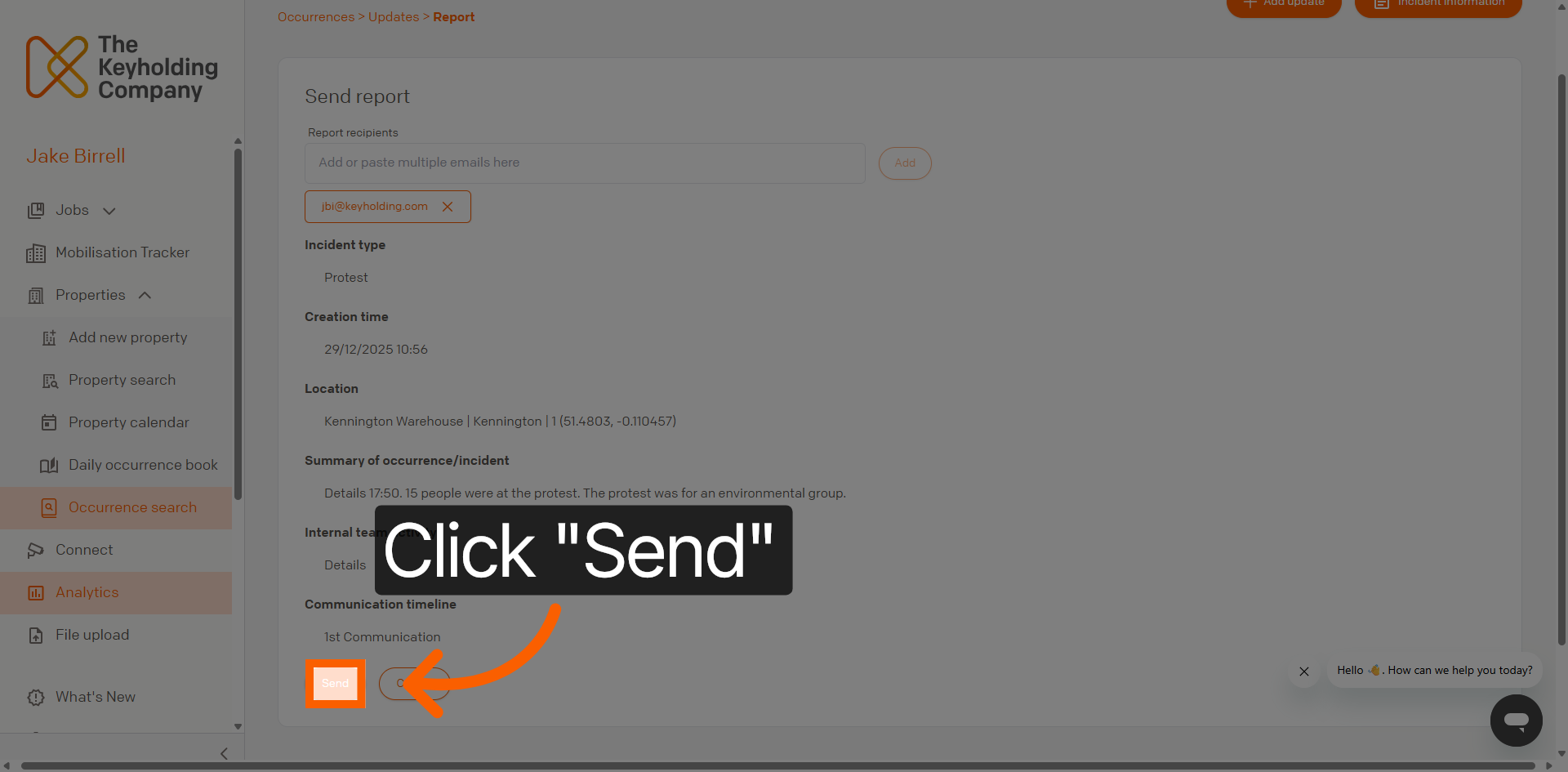
Confirm Report Sending
Once you have entered the recipient email/s, click Send to confirm and send the Occurrence report.
04
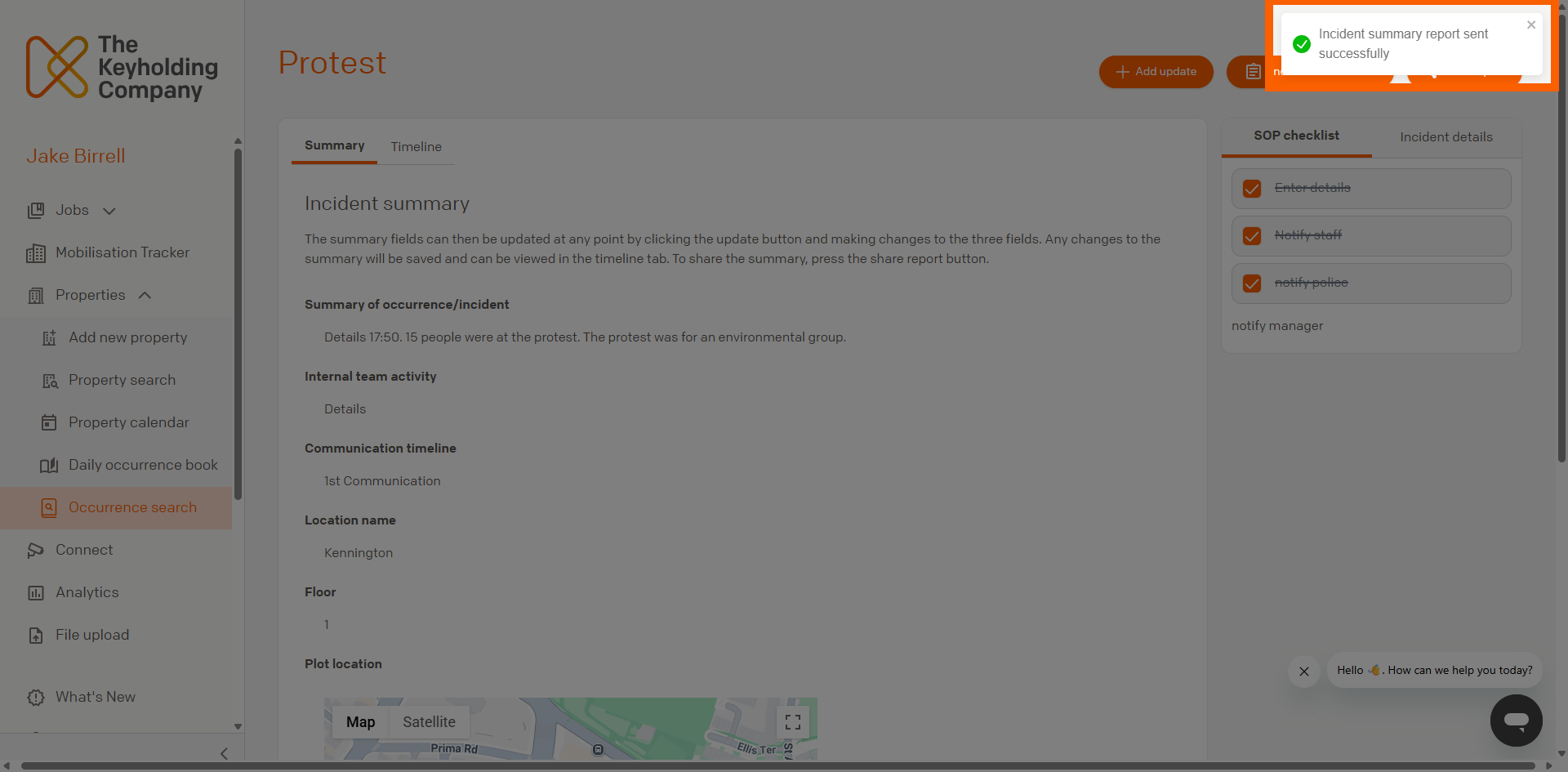
View Confirmation Message
Once the message has been sent, you should see the following notification appear.
05
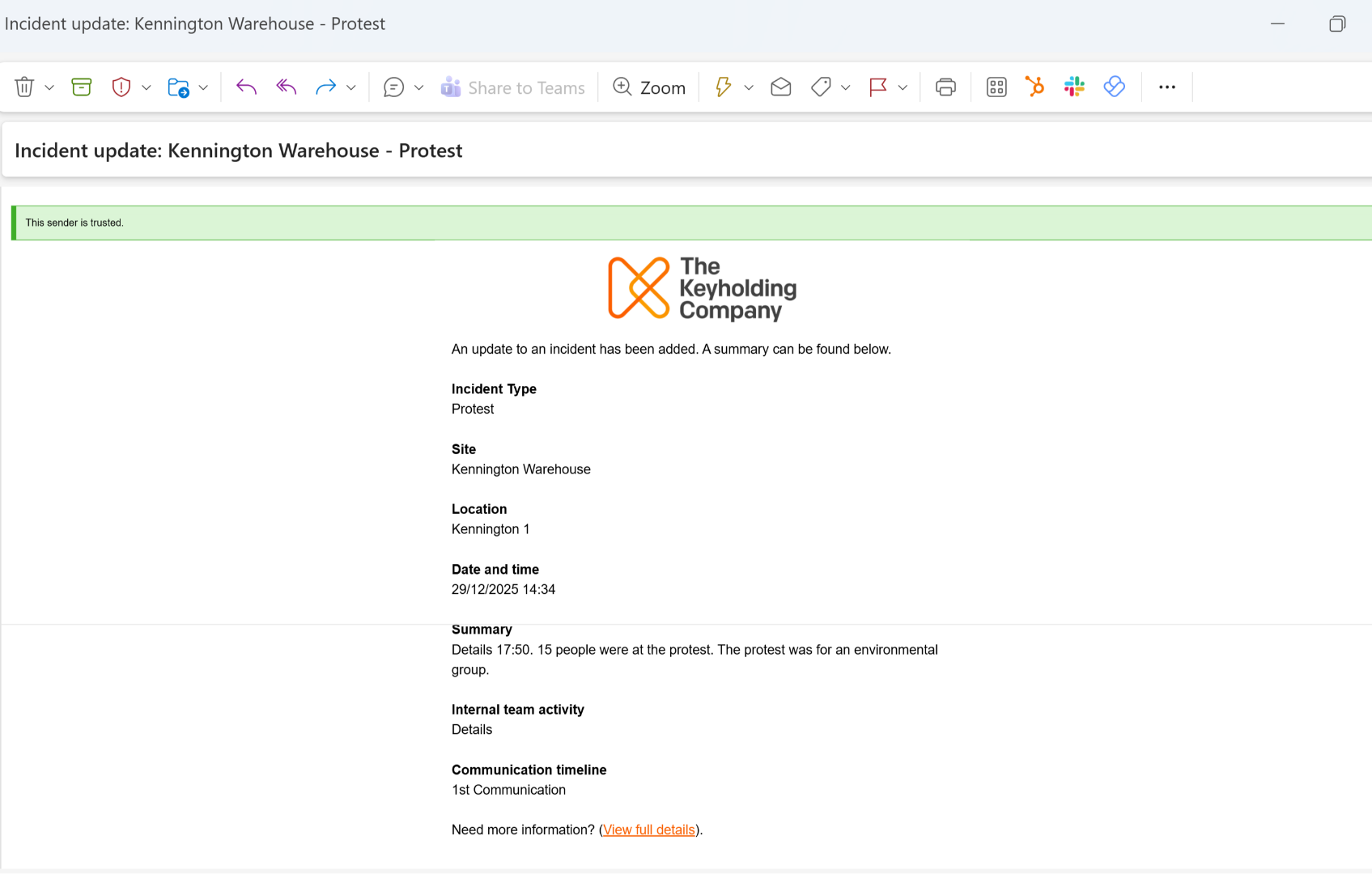
Occurrence Summary Email
The recipient will receive an email with the incident summary included. Also included is a link to the incident summary within the platform, should the recipient wish to view the full incident record within Command.
You have successfully shared Occurrence information by selecting the Occurrence, adding recipient emails, and sending detailed reports. For further management, consider updating incident summaries or adding more recipients as needed.